
2D
Tracking: what's different
Point tracking, the planar tracker and the camera tracker work as compositors expect. This page covers what JOS adds.
Four trackers, each doing one thing
Where Nuke has one Tracker and an Export menu that makes the node that moves the picture, JOS has four tracker nodes, kept simple: no T, R, S choices per track.
- Tracker only tracks: the picture passes through. It has as many tracks as you need (a new one comes with one, in the middle of the frame). Each track's x and y are shown under the table: Ctrl+drag one onto another node's setting to link it to the track, for example a Roto's master offset so a paint fix follows the shot.
- Stabilize and Match Move have two tracks:
- pivot: the move, and the point everything turns and scales about.
- transform: once tracked, the line from the pivot to it gives the rotation and the scale (how it turns and how its length changes). One point has no angle or size, so with only the pivot tracked the node moves the picture but doesn't turn or scale it.
- Place both on features of the same rigid surface, far apart for precise rotation and scale. Disable the transform track (its e) to keep translation only.
- Under the table, motion shows the result at the current frame: translate, rotate, scale and center (the pivot). Rotate and scale are greyed until the transform track is tracked. Ctrl+drag a value onto another node's setting to drive it (an expression such as
MatchMove1.rotate). - Track pairs, for features that leave the frame: add track pair (under the table) adds another pivot and transform track, as many pairs as you need; delete pairs removes the selected tracks' pairs (the first pair stays). Adding a second pair turns on merge tracks: the pairs' motion is chained frame by frame, as the Merge Tracks node does, so when one pair walks out of the frame another, tracked from where it came in, carries on without a jump. Track each pair with the usual buttons (select its rows first to track it alone). Off, only the first pair moves the picture. The Merge Tracks node is still there for joining separate trackers.
- When no pair sees a frame (every point lost or off screen for a few frames, each pair tracked again after), merge tracks fills the gap the way Fill gaps would (a curve fitted to the keys around it), live: the keys stay as they are.
- Stabilize undoes the motion on its plate: no second node to connect. A new one starts with apply stabilize off, so the plate shows as it is while you track, fix the tracks and work on the plate; turn it on once the track is solid to see the result. The switch is at the top of its settings (in Properties and in the node) and in its settings row over the viewer (stabilize); each click is one undo step. While it's on, the tracks are drawn on the stabilized picture, on the features they follow, and you can still drag them: the point follows the mouse, then the picture settles around it when you let go. Projects saved before the switch open with it on, so they look as they did. Match Move doesn't need it: it moves only the image on its image input, never the plate.
- Match Move moves the image on its image input with the shot; over plate puts it over the shot. With nothing on image the plate shows unchanged, so you can check the tracks on it (as a CornerPinTracker without a source). A green box shows that image's frame in the viewer (off by default, so you track first; turn on display gizmo to place the image): drag inside to move the image, a corner to scale it, an edge to stretch it, the handle above it to turn it. It places the image at the reference frame; the tracks carry it from there. While the box shows, the tracks are hidden in the viewer and a click anywhere on the box grabs it; turn display gizmo off to see and move the tracks again (nothing else changes).
- While a Match Move, Stabilize or CornerPinTracker tracks, the viewer shows the plate it tracks, not the moved picture; the result shows again when the run ends.
- extrapolate (Stabilize, Match Move, CornerPinTracker, Tracker): before a track's first key and after its last, its position goes on as it was moving instead of stopping, worked out live as the curve editor's before/after setting would (the keys aren't changed). extrapolate as picks the curve editor's mode: linear (the end key's speed, the default), extrapolate (speed and acceleration of the last keys) or exponential. An end set in the curve editor wins. With merge tracks on, frames no pair covers at all are extrapolated from the pairs. On a Tracker it changes its motion values only, not its tracks' x and y read by links.
- CornerPinTracker pins an image onto four tracked corners (below). For a surface that bends or turns in perspective, use it or the PlanarTracker: Stabilize and Match Move only move, turn and scale.
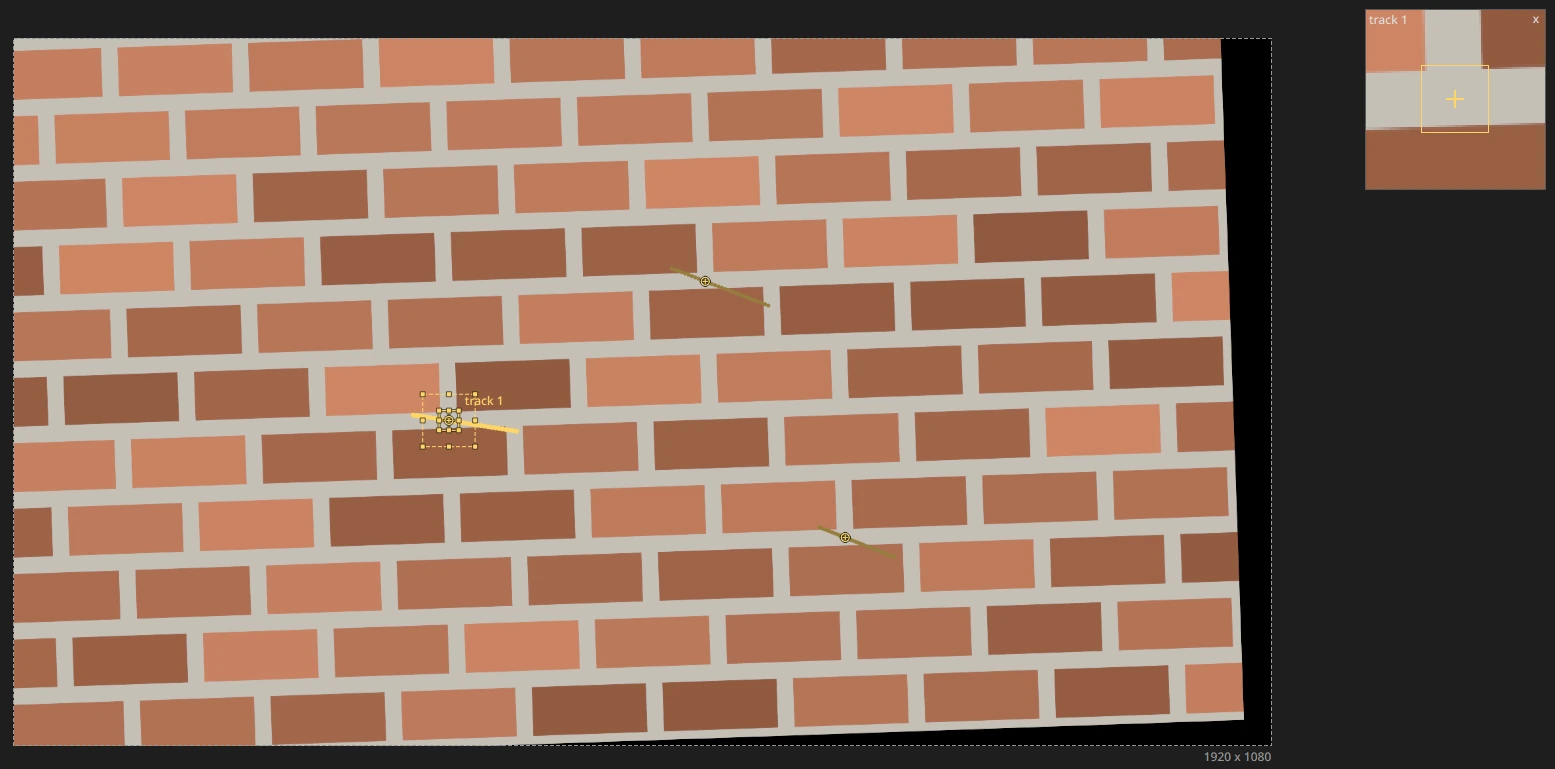
A Match Move on the same wall, at frame 20. A picture connected to its image input was placed on the wall at the reference frame; the two tracks carry it with the wall since then:
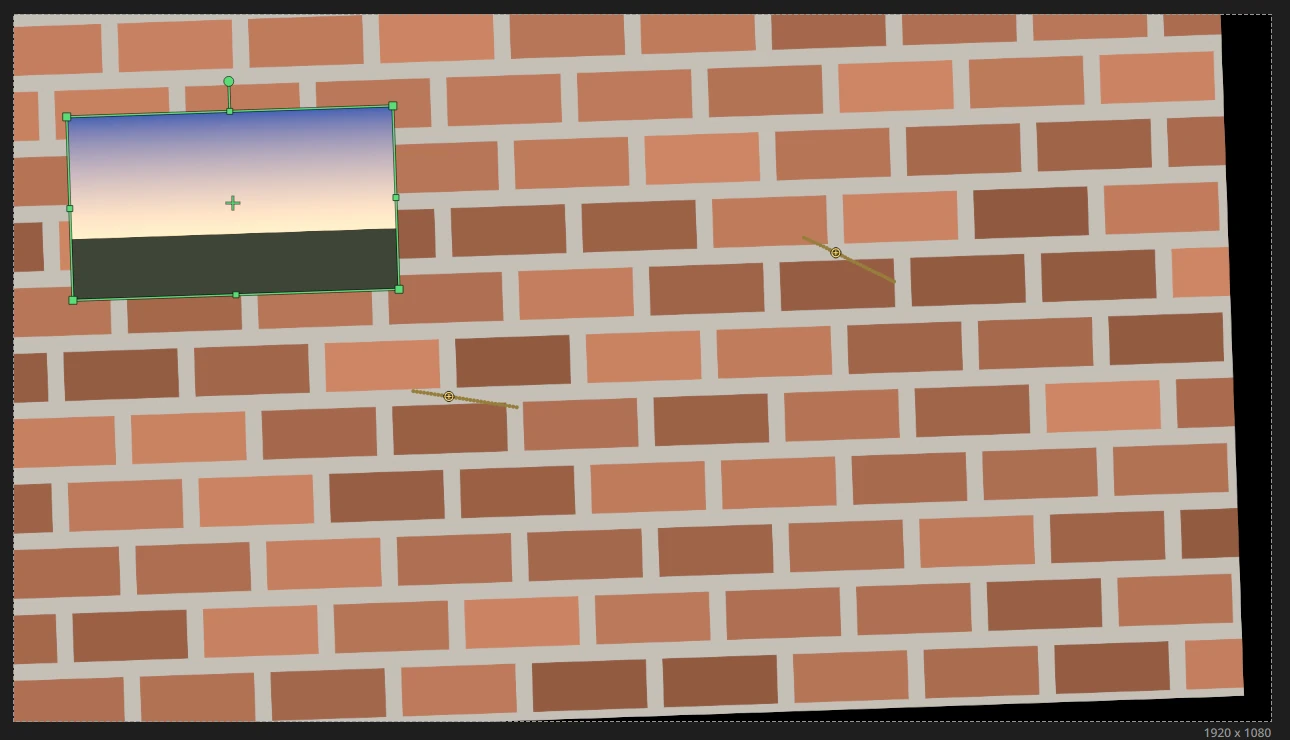
Their mask input (a matte's alpha) keeps whatever it covers out of the tracking. A Nuke Tracker that stabilizes or match-moves (any number of tracks, with Nuke's T, R, S) comes in as a Tracker driving a Transform, so it moves the picture exactly as in Nuke; older JOS projects with such trackers open the same way.
CornerPinTracker
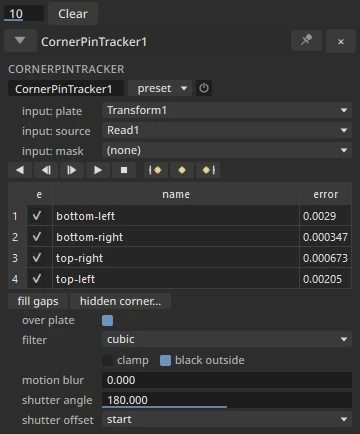
One node does what a Tracker and a CornerPin used to do together. It has two image inputs, plate (the shot you track) and source (the image you pin), and exactly four tracks: bottom-left, bottom-right, top-right and top-left.
- Connect the shot to plate and the image to pin to source.
- Place the four tracks on the corners and track them, as in a Tracker.
- The source's whole frame goes onto the four tracked corners at every frame. There is no reference frame: the corners are where the source's corners land.
- The output is the pinned source alone, to comp over something else. Turn on over plate to put it over the shot.
- A green box shows the source on the four tracks in the viewer (off by default, so you track first; turn on display gizmo to place the source). Drag inside to move the source within the tracked corners, a corner to scale it, a side's handle to stretch it one way, the handle above it to turn it. The placement is the source's own (translate, rotate, scale under source placement), applied before the pin, so the four tracks carry it, in perspective, at every frame. Left as it is, the source's frame fills the four corners. The box's corners start under the tracks' points, so while the box shows the tracks are hidden in the viewer and a click there grabs the box's corner. Turn display gizmo off to see and move the tracks again; it changes only what the viewer shows.
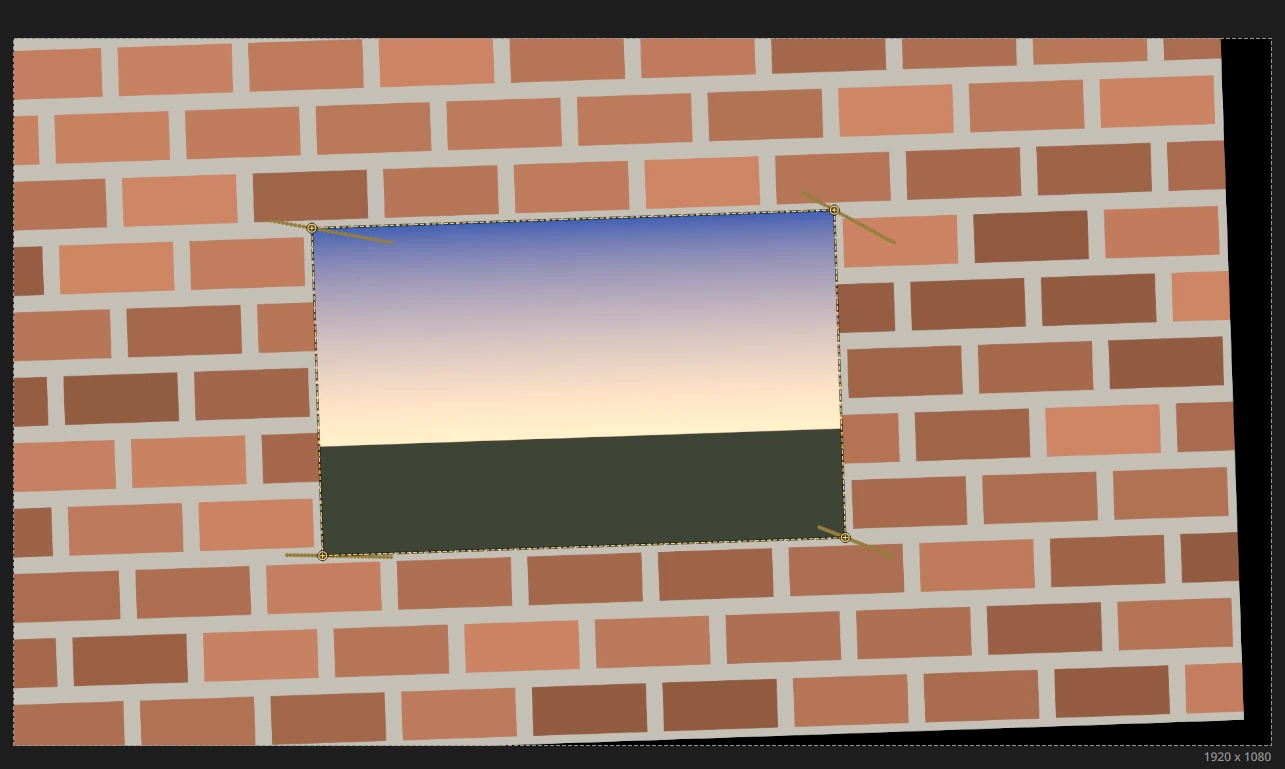
- No source: the plate shows unchanged, so you can check the tracks on it.
- extrapolate keeps the corners moving before the first tracked frame and after the last (a screen whose corners were tracked over part of the shot).
- A source without alpha gets an alpha of 1 over its frame.
- To hold the shot still, use the Stabilize node.
The Tracker, Stabilize and Match Move nodes keep any number of tracks; their tracks are not sockets. Projects whose tracks were wired into a CornerPin load with those corners following the tracks by expression.
Merge Tracks: when a feature leaves the frame
A feature you track walks out of the frame, and another one, tracked from a later frame, carries on. Merge Tracks joins their motion into one, frame by frame: where both are tracked their moves are averaged, so they agree; where one ends, the others carry on from where it was, without a jump. A frame no track covers holds still.
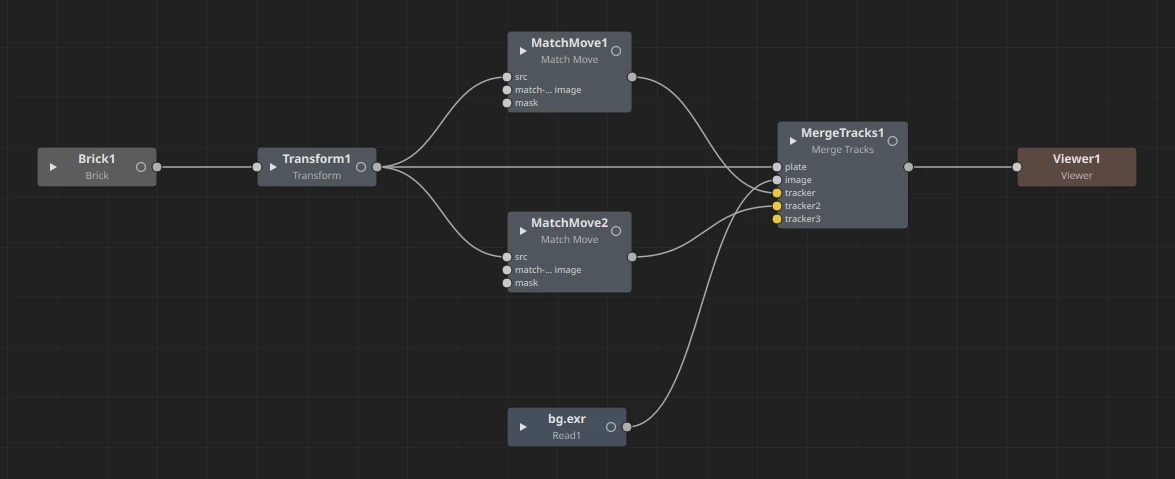
- Connect the trackers (Tracker, Stabilize or Match Move) to the yellow tracker inputs. A new one appears each time you connect one. Other nodes don't connect there.
- Connect the shot to plate and the image to move to image.
- Set the reference frame: the frame where the image sits as you placed it. The motion is counted from there.
- over plate puts the moved image over the shot; off, the moved image comes alone.
- display gizmo shows a green box over the image in the viewer: drag inside to move it, a corner to scale it, an edge to stretch it, the handle above it to turn it. The translate, rotate and scale fields under it hold the same placement.
- motion, under the settings, shows the merged result at the current frame (translate, rotate, scale, center). Ctrl+drag a value onto another node's setting to drive it (
MergeTracks1.translate_x). Rotation and scale need a source that turns: a Stabilize or Match Move with its transform track, or a Tracker with two tracks or more. - A track counts from its first key to its last.
Here the first Match Move's tracks end at frame 16 and the second one's start at frame 12. Both go into the Merge Tracks, with the wall on plate and a picture on image:
At frame 24, after the first tracker's tracks have ended, the picture still follows the wall, inside its green box:

On a Tracker, merge tracks does the same with its own tracks: the motion shown under its table is all of them joined.
Merge Tracks is JOS only: exported to Nuke, it becomes a NoOp, with a warning.
Camera tracker: what it does, what you add
- Tracked points: automatic. The CameraTracker finds features on the plate and follows them by itself; Solve works out the camera and the lens from them.
- Guides: you draw them. Lines along edges that are square in the set (below). The tool doesn't find them for you, but snap lays the line you draw onto the plate's real edge.
- Control points: you tie tracks together that are the same point (a corner tracked on two visits), so the solve closes the loop (below).
- Manual points: you add them where you want to hold something: a corner seen again later, a point to set the axes from (below).
Camera tracker: guides, axes and a cube
Things that are square in the set (a truck's box, a kerb, a building's corners, a door frame) help the camera tracker, as in fSpy: draw them, and the solve keeps them.
Guides. In the CameraTracker's settings row in the viewer, turn on guides, choose X, Y or Z (verticals are the up axis: Z when the 3D up axis preference is Z, as in Blender; the row says which, "Y up" or "Z up", and marks that axis' button "(up)"), and drag along an edge that runs that way: from where the axis starts to where it points (the arrow shows which way). Two lines per axis on one frame are enough; more lines, or lines on other frames, only average out how they were drawn.
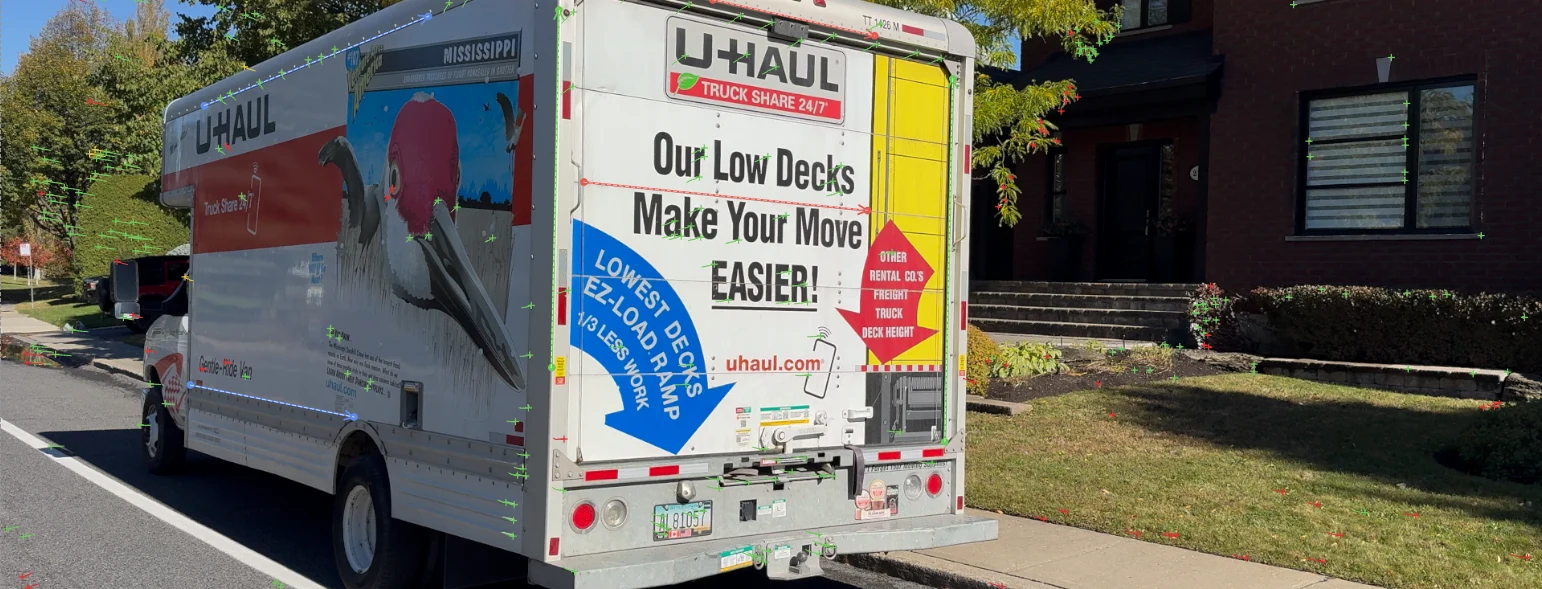 - The lines only have to be square in the set: on screen they are at whatever angle the perspective gives them.
- snap (on by default) puts a line drawn or moved onto the straight edge of the plate it lies along.
- Drag a line's end to move it; Delete removes the last one touched. Each is one undo step.
- set: lines of one set must be parallel or square to each other. A truck parked at an angle to a house is another set: its lines keep axes of their own, so the two don't fight. Set 1 is the scene's axes.
- The lines only have to be square in the set: on screen they are at whatever angle the perspective gives them.
- snap (on by default) puts a line drawn or moved onto the straight edge of the plate it lies along.
- Drag a line's end to move it; Delete removes the last one touched. Each is one undo step.
- set: lines of one set must be parallel or square to each other. A truck parked at an angle to a house is another set: its lines keep axes of their own, so the two don't fight. Set 1 is the scene's axes.
Solve then keeps every camera seeing the axes along the lines, which also holds the lens, and the scene comes out in their axes: X, Y and Z are the set's. Once solved, a dashed line from each guide's middle shows where the solved axis runs; a guide far from its dashed line was drawn off (or belongs to another set). The panel says how far off the guides are, in pixels. guide weight sets how much a guide counts against the tracked points (0: they only set the axes). Draw guides on the plate as you see it: with lens distortion on, their ends are taken through the lens being solved, so an edge near the frame's corner counts as the straight line it is.
Set axis. Pick two solved points in the viewer (the first, then the second) and choose X, Y or Z: the direction from the first to the second becomes that axis. Along the floor it turns the scene about up (the ground stays level); along up it makes them vertical.
Something comes back into the frame misaligned (the camera turns away and back, and the table or the floor isn't where it was): tie the two views together with a control point (or a manual point), as described in When the camera comes back below.
Lens distortion. Turn on lens distortion before Solve and the lens' distortion is solved with the camera (LensDistortion's radial model); the panel shows it. The camera is then the undistorted plate's: Create Lens Distortion makes the LensDistortion node that undistorts the plate (comp your CG over that), and a copy of it set to Redistort puts the result back on the original plate. On iPhone test shots it found about -0.05 and 0.04, and with it a table corner stayed within 2 to 8 pixels (4K) through a turn away and back.
Create cube. Pick points on an object's faces (Shift+click for more) and click Create cube: a Cube round them, square to the scene's axes, joined to SolvedWorld. With guides along the object's edges, the cube is square to the object; drag its sides out to its real edges.
Camera tracker: when the camera comes back
On a shot that turns round a room, small errors add up: when the camera comes back to the table, the solve can be hundreds of pixels off (on a 4K living-room test shot, about 1,000 px at the table's corner). The tracker followed the table's corner twice, once on each visit, but as two separate tracks: nothing tells the solve they are the same corner. A control point tells it.
Control points: tie two tracks together
- Make a control point. On the first visit, click an automatic point (a track) on something you will see again: the table's corner. Click Control point in the CameraTracker's settings row in the viewer (or press C with the mouse over the viewer, or Make control point under the node's list). It becomes Point A; the next ones are B, C, and so on. Its tracks are drawn as pink diamonds with the point's letter.
- The list. The CameraTracker's settings (in Properties and in the node) list the control points: each with its tracks (their numbers and frame ranges) and, once solved, its error in pixels. Select a point and its tracks are picked and highlighted in the viewer; pick one of its tracks in the viewer and its row is selected. Unlink takes the selected track out of its point, Delete removes the point (its tracks stay, as ordinary tracks), and a double-click on a name renames it ("Table corner").
- Link the track where it really is when the camera comes back. Select Point A in the list, go to a frame of the second visit, Shift+click the track sitting on the corner, and click Link to Point A (in the list, or in the viewer's settings row, or press L). On a solved frame the selected point's place as the solve has it shows as a dashed pink ring: the real corner is often far from it, which is the drift. Several tracks can be linked to one point (the corner tracked three times over).
- Solve again. The solve takes all of a control point's tracks as one 3D point, with every track's observations (when two of them see it on the same frame, both count). They are weighted like a manual point's keys and never thrown out, so the cameras bend back to meet them and the loop closes. The list and the viewer show each point's error after the solve.
Link two or three points spread over the set (two corners of the table, a door frame): one point pins where something lands, two or more hold which way the scene faces too (see below). In a test with a camera turning 150 degrees and back while every track slips a little, four control points brought the first visit's points from about 8 px off to under 1 px on the return frames.
Control points are kept in the CameraTracker's control_points setting (JSON: each point's name and track numbers), so scripts and AI assistants can read and set them like any other setting. A track that goes away (removed by the second pass, deleted) drops out of its point; Track again starts the points over, since every track is new.
Manual points: when no track holds the corner
When no automatic track sits on the corner on one of the visits, place a manual point instead and key it on both:
- Before it leaves the frame: with 3D point on, click something you will see again (a table's corner). Go to another frame and click it again: the second click snaps onto the line the first click's ray makes, and places the point. It shows as a blue circle.
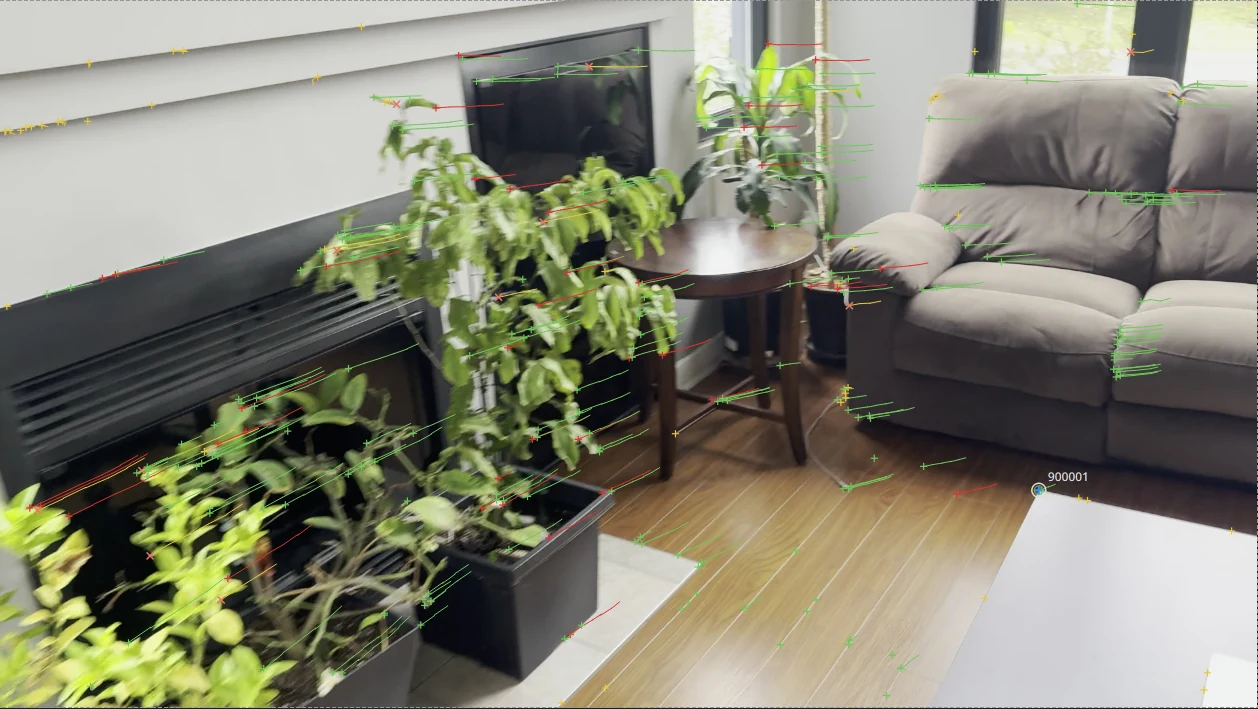 2. When it is back in view: pick that point, then key it where it really is:
- its blue circle is close (within about 30 px): click near it;
- it is far away, or off screen (an arrow at the viewer's edge shows where the solve thinks it is, and how far): Ctrl+click where the corner really is.
2. When it is back in view: pick that point, then key it where it really is:
- its blue circle is close (within about 30 px): click near it;
- it is far away, or off screen (an arrow at the viewer's edge shows where the solve thinks it is, and how far): Ctrl+click where the corner really is.
Here, after the camera has turned round the room, the solve puts the point in the middle of the table, far from its real corner:
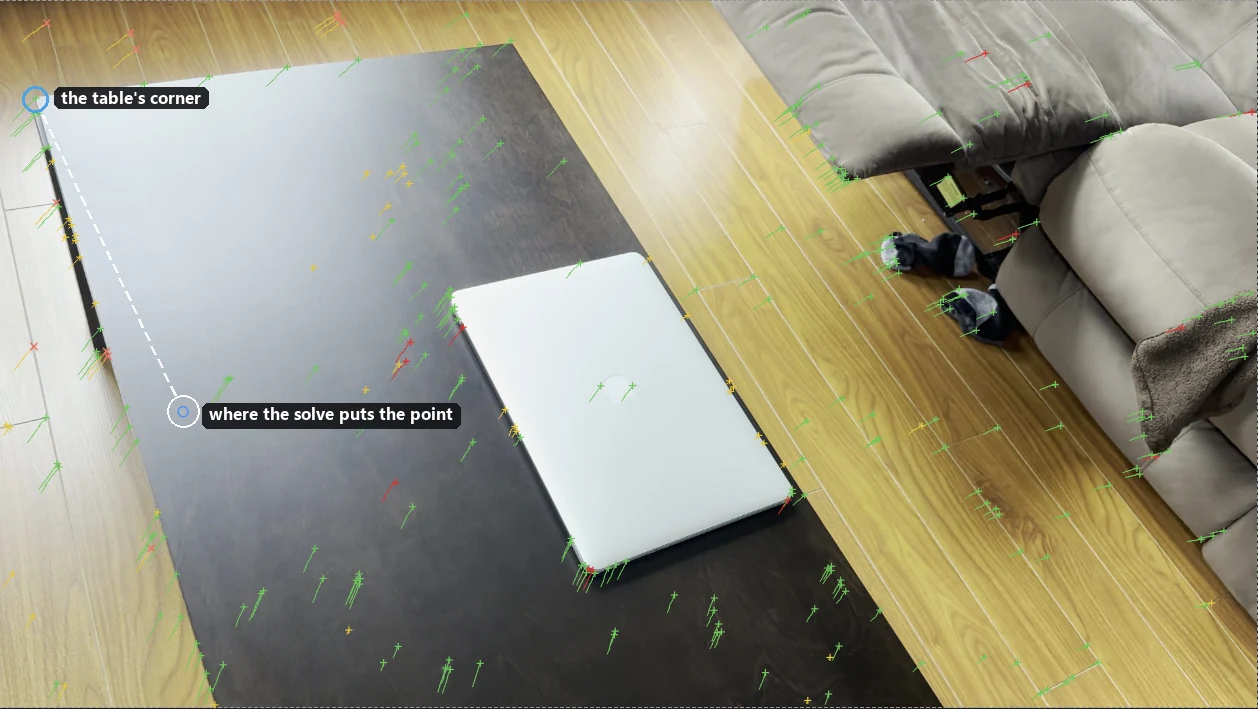 3. The click snaps onto the plate's nearest corner (hold Shift to place it exactly where you click). A message lists the frames the point is keyed on.
4. Key it on two or three return frames, then Solve again. A manual point's keys are trusted (never thrown out, pulling hard), so the solve bends back to meet them.
3. The click snaps onto the plate's nearest corner (hold Shift to place it exactly where you click). A message lists the frames the point is keyed on.
4. Key it on two or three return frames, then Solve again. A manual point's keys are trusted (never thrown out, pulling hard), so the solve bends back to meet them.
The same frame, the corner keyed on three return frames and solved again: the point sits on the corner.
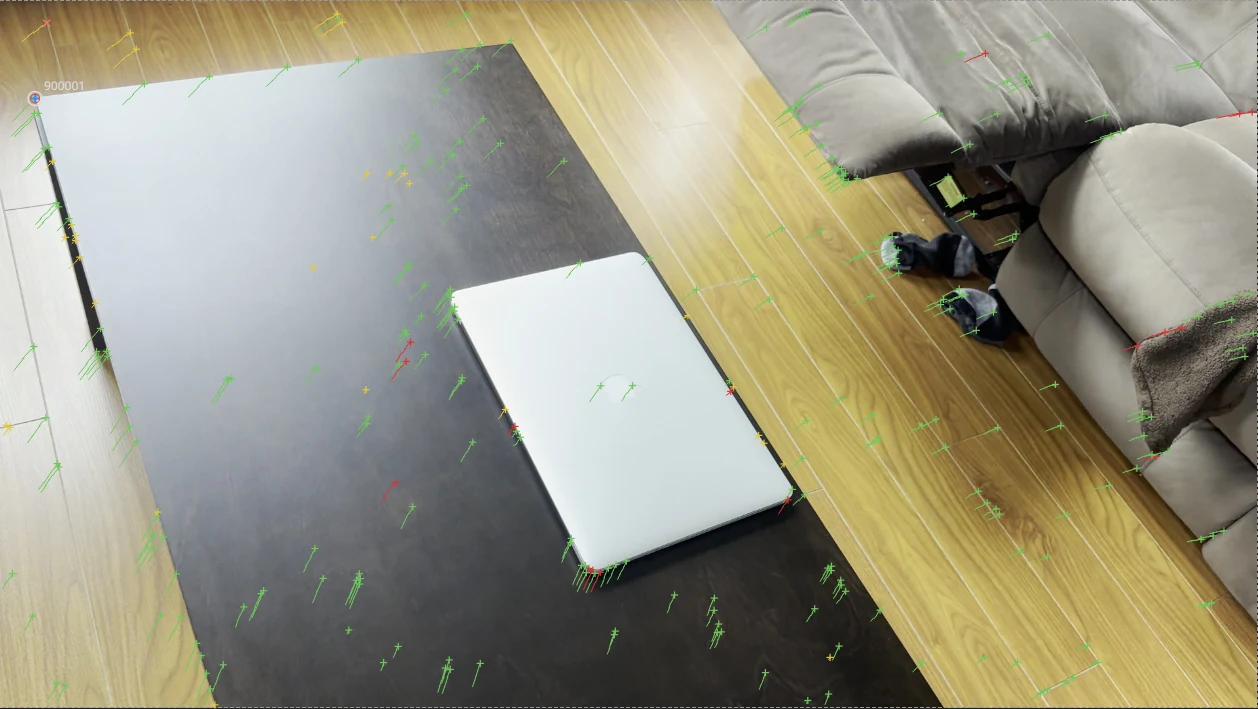
On that test shot, keyed on three return frames, the corner landed 3 to 5 px from where it really is on the frames that weren't keyed. Key a few more frames if the frames in between still drift. A Tracker's track plugged into the CameraTracker's tracks input does the same as a manual point.
One point holds a place, not a direction. It pins where that corner lands, but the solve can still turn the scene around it: tilted, or rotated about the point. To hold the orientation too, add either:
- a second control point or manual point, far from the first (the other end of the table, a door's corner), keyed the same way on both visits; or
- guides along one or two edges you see on both visits (a table's edge, where the floor meets the wall), in a set of their own (say set 2), drawn on a frame of each visit.
The points hold where things are, the lines which way they point. Two points, or a point and a guide, is the safe recipe; one point was enough on the test shot above, but not on every shot.
Occlusion: what passes in front
A finger crossing a phone screen, or a passer-by, must not pull the track. The PlanarTracker, CornerPinTracker, Tracker, Stabilize, Match Move and CameraTracker leave out of the tracking whatever their occlusion covers.
- Occlusion shapes: click the occlusion button in the tracker's settings row in the viewer, then draw shapes over the occluder with the Bezier tool (or its ellipse and rectangle). A shape drawn on a frame is keyed there: move its points on other frames to follow the occluder. Turn the button off to get the tracker's own handles back; the shapes stay shown, filled.
- The mask input: connect a matte (its alpha is used) to the tracker's mask input, for example a key of the hand. On the CameraTracker, use its mask input.
- A hidden track on a Tracker or CornerPinTracker is carried by the tracks that are still seen, so a corner under a finger stays on the screen.
- keep occlusion in front (PlanarTracker, off by default): puts the plate back over the inserted image where the occlusion covers it, so the finger stays in front of the new screen.
CornerPin2D follows its input
A new CornerPin2D's corners start on its input's image, as it is after any Transform above, not on the frame. With follow input on (as it is on the CornerPin2D nodes you create), its corners are offsets from the input image's corners: change a Transform above, and the pin and its handles in the viewer move with the image. A copy pasted on another branch lands on that branch's image.
- Turning follow input on or off converts the corners, their keys and expressions, so nothing moves. One undo step.
- Older projects, Nuke imports and the trackers' exports keep absolute corners (follow input off).
- Exported to Nuke, the corners are written as absolute positions (Nuke has no such setting), keyed per frame when anything animates.
Fill gaps
When a track loses its pattern for a few frames (motion blur, something passing in front), fill gaps in the Tracker's panel keys the missing frames. The keys follow a curve fitted through the five keys on each side of the gap, so a track moving in an arc stays on its arc.
- Which tracks: it fills the tracks selected in the table, or all of them if none are selected.
- Using a stretch of keys: in the viewer, Shift+drag from empty space to box-select the keys to fit. Each track is then filled only between its first and last picked keys, fitted to those keys.
- Report: it says how many frames it keyed, in how many gaps.
Hidden corner
hidden corner... in the Tracker's panel works out one corner of a rectangle from the other three. Use it when a thumb covers a phone screen's corner, or when the corner is never in frame.
- Track the three visible corners. Add a fourth track for the hidden corner; it can stay untracked.
- Click hidden corner... and fill in the dialog:
- corner 1 (bottom left) to corner 4 (top left): pick the track for each corner.
- hidden: which corner to solve.
- aspect: the rectangle's shape, e.g.
16:9or1.778. Leave it blank to measure it from frames where all four corners are tracked. If the corner is never seen, it is required. - focal (pixels): leave it blank to measure it, or to guess it if it can't be measured. - The corner is keyed on every frame. The report says whether the aspect and focal were measured or given.
Placing a corner by hand: the viewer outlines the first four enabled tracks as a dashed shape, which helps place a hidden corner along a screen's visible edges.
Focusing on one track: clicking a track's path brings it forward and dims the others. Click empty space to show them all again.