
2D
The node graph
This page covers only the node graph features that are particular to JOS Compositor. The familiar ones (Tab picker, Dots, Backdrops, clones, minimap) work as you'd expect.
Connecting nodes
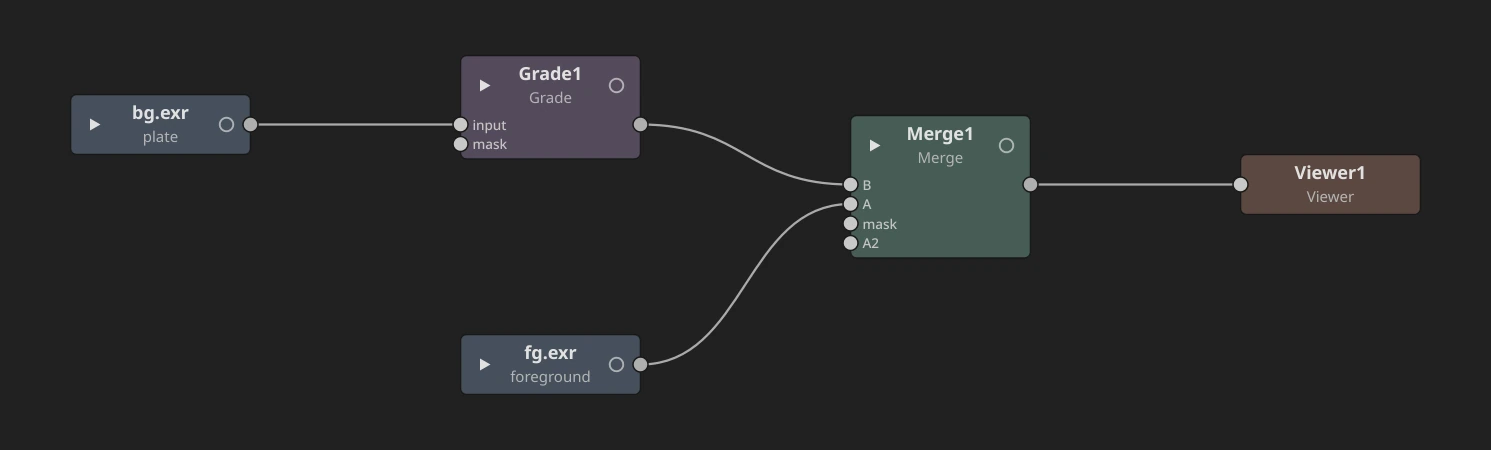
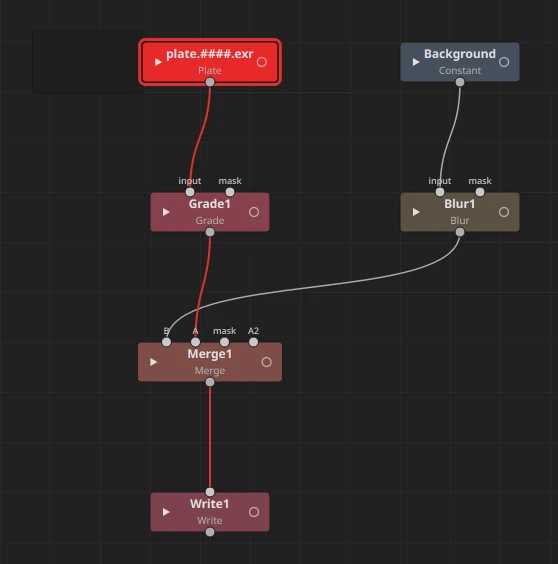
Pictures flow along wires from a node's output (the socket on its right) into another node's inputs (the named sockets on its left). Drag from an output to an input, or click one then the other. Here a plate goes through a Grade into the Merge's B, a foreground into its A, and the Merge into the Viewer:
Settings inside the node
Double-click a node: it grows in the graph and shows all of its settings, with the same controls, tables and buttons as the Properties panel. You can close the Properties panel and work entirely in the graph.
- Open or close: double-click the node, or click the small circle at the right of its title (a ring while closed, filled while open).
- Close: double-click the node's title bar beside its name (on the name, it renames), or an empty part of its settings (between rows, the margins, a row's label). Fields, buttons, lists and graphs keep their own double-click. Alt+Shift+click on empty graph space closes every open node.
- Move an open node: drag its title, or any empty part of its settings.
- Several at once: open nodes stay open when you click elsewhere. Clicking a node or its panel brings it to the front.
- The layout doesn't move: opening a node never pushes the others away; it overlaps what follows. New nodes are placed as if every node were closed, and a project saved with open nodes reopens with the same spacing.
- Renaming: an open node's title is its name. Double-click the title to rename it in place: Enter or clicking away keeps the name, Escape cancels. N or F2 renames the selected node, open or not.
- Keyboard: while you type in a field, keys go to the field. Click the graph outside a panel to get the graph's shortcuts back.
- Exceptions:
- A Viewer: double-clicking it makes it the active viewer.
- A Nest: double-clicking it takes you inside.
- A Material: double-clicking it opens the material editor.
- Nodes without settings (Dots) don't open.
Compact settings
Settings, in the Properties panel and inside nodes, use small dark fields in tight rows, so a node's settings take little room.
- The value line: a thin blue line along the bottom of a number field shows where the value sits in its usual range. It is full, with a tick at its end, past the top of the range.
- Keys: an animated field shows a diamond at its right. Click it to set or remove a key at the current frame.
- Sections fold under a triangle. Folded, they show a short hint of what is inside. A section that does nothing as it is (a weight at 0) starts folded.
- Pairs and colours: every field starts and ends at the same edges, filling the panel. A colour row is its eyedropper, its swatch, then its value: one number while its channels are equal, r, g, b (and a, when it isn't 1, or always for Grade's per-channel settings) fields once they differ. Gammas use a logarithmic slider (1 in the middle). Transform's scale shows scale x and y under its arrow.
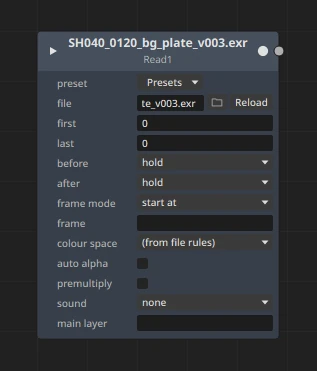
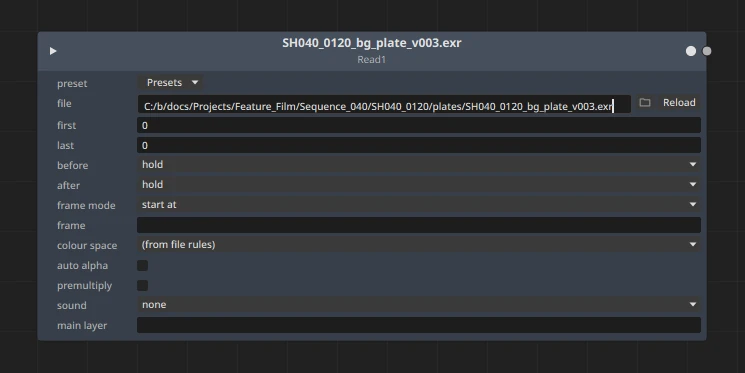
- File paths: a long path doesn't fit in a node, so its field shows the end of it, the file's name. Ctrl+click the field to see the whole path, editable: the node widens to show it on one line (up to a limit, then the path wraps). Ctrl+click again folds it.
Colour swatches and the colour picker
A colour's swatch is filled with the colour. Click it to open the colour's wheel under the row (see Colour wheels in Everyday work). The colour picker window opens from the row's right-click menu, Colour picker..., next to the row (below, or above when there is no room), always on the screen.
- RGB and HSV edit the same scene-linear colour, so switching between them never changes it. Values can go above 1.
- The hue wheel is shown through the viewer's display transform, so what you see is what you get.
Curve graphs inside nodes
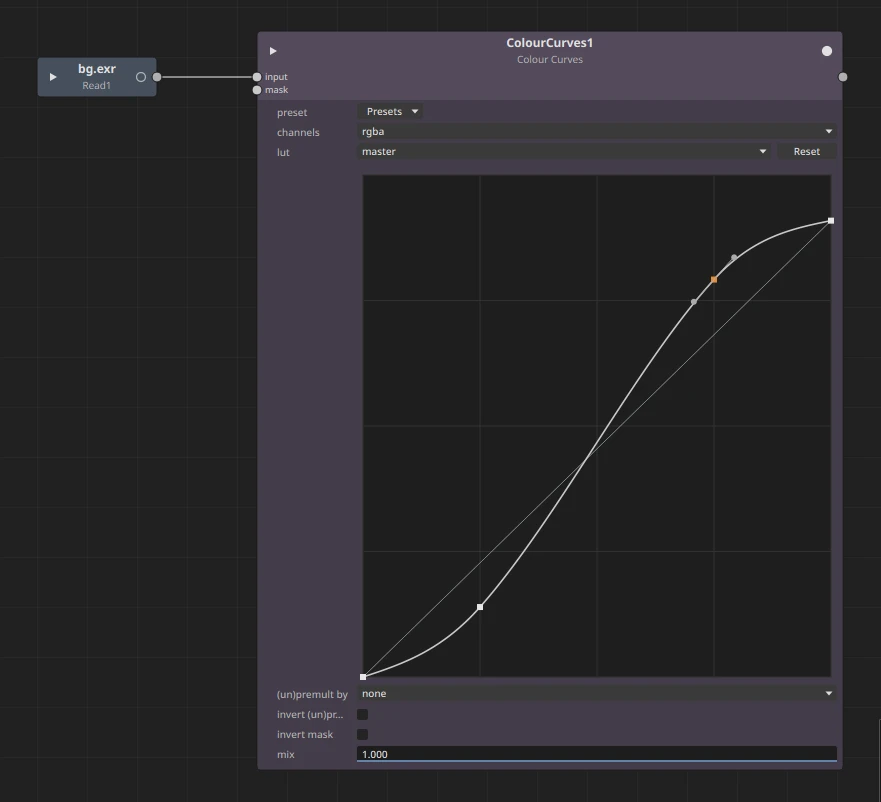
Some settings are curves, drawn in a small graph: ColorLookup (Colour Curves), HueCorrect, HueKeyer, ColorCorrect's ranges, AddMix, Sampler, the colour crosstalk, TimeDissolve and ScannedGrain. The graph sits inside the node and in the Properties panel.
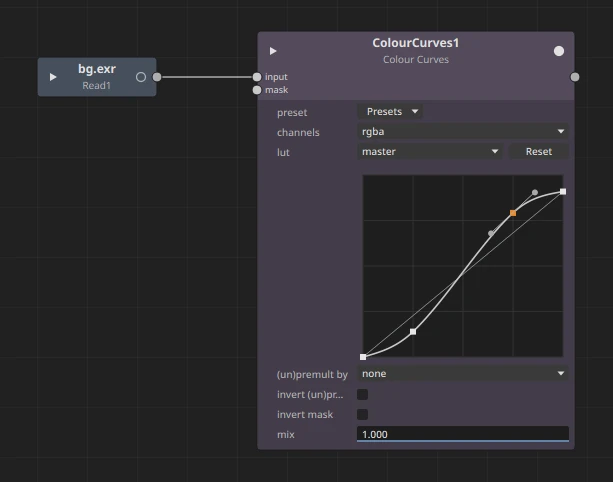
- Pick the curve to edit in the pull-down above the graph (master, red, green, blue, alpha for Colour Curves). Every curve is drawn; the one you edit is bright.
- Add a key: Alt+click anywhere in the graph, or click right on the curve.
- Select: click a key; Shift+click adds to the selection; drag on empty space to draw a selection box; A selects every key.
- Move: drag a selected key. Selected keys move together, and a key never passes its neighbours.
- Delete: Delete or Backspace removes the selected keys. A curve always keeps at least one.
- Tangents: a selected key shows two handles. Drag one to change the slope on both sides; Ctrl+drag moves one side alone (the key is then broken).
- Right-click a key for Smooth, Linear, Constant, Flat, Break and Unify, or to reset the curve.
- Reset puts the curve you are editing back to its default.
Every change is one undo step.
A bigger graph: double-click the graph's background (not a key or the curve). It grows, taller in Properties, wider and taller in a node, and the node grows around it. Double-click the background again to bring it back.
Number fields
Every number field is also a slider.
- Drag left or right to change the value. Hold Shift for 10× finer steps (on whole-number fields, Shift also allows fractions), Ctrl+Shift for 10× coarser.
- Up / Down step the value by a hundredth of its range (Shift: a thousandth).
- Click (or double-click) to type a value. Type
=followed by an expression to set an expression. While typing, Tab and Shift+Tab go to the next or previous field. - Ctrl+click resets the field to its default.
- A whole drag is one undo step, and the viewer previews coarser while you drag so it stays responsive.
A socket per channel
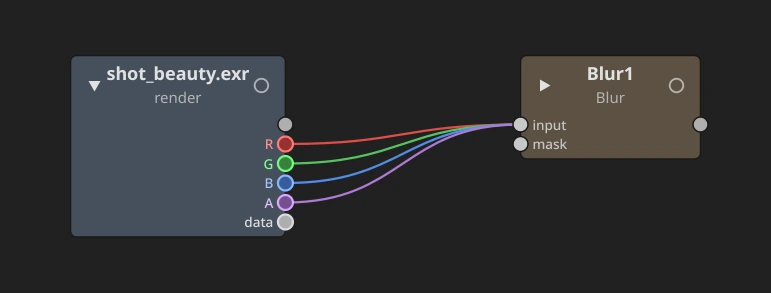
Click the ▸ triangle in a node's header. Its output splits into:
- a grey socket for the whole image;
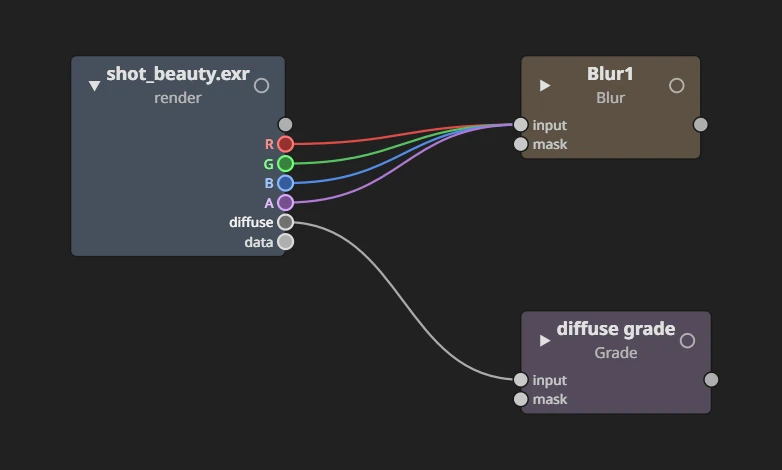
- coloured R, G, B, A sockets, one per channel;
- one data socket for every other channel and layer. Click it to list them and pick one. It is greyed when the image has nothing else.
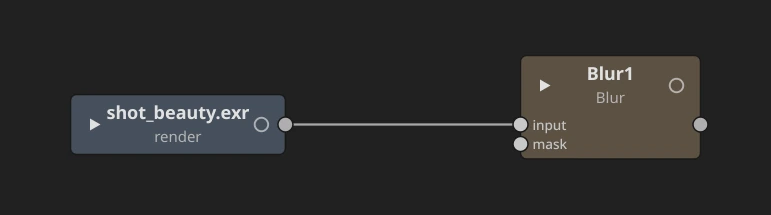
A Read of a render, closed, then opened with ▸: the wire into the Blur is drawn from its R, G, B and A, and its other layers (diffuse, specular, depth) wait behind data:
The data socket. A render can hold dozens of layers, so the node doesn't draw a socket for each one. Click data to list them:
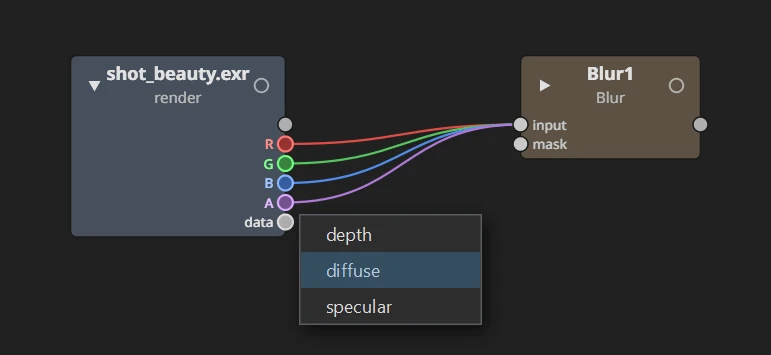
Pick a layer and it gets a socket of its own, just above data, and the next input you click receives it. Click in empty space instead to make a new node fed with that layer. data stays at the bottom for the next layer you need:
How to use them:
- One channel: drag from R, G, B or A (or click it, then click an input). The input receives a single-channel image holding only that channel. The wire is drawn solid, in the channel's colour.
- A data channel or layer: click data and pick a channel or layer: it gets its own socket, next to data, which stays there to pick another. Click an input to connect it (or drag from its socket later). A layer arrives as R, G, B, A. Channels wired from the node keep their sockets; picks not wired go back into data when you close the node with ▸. Dragging a wire from a free input onto data asks the same. Click empty space instead to pick a new node there, fed that channel or layer.
- The whole image from an expanded node: drag from the grey socket. The connection is drawn as four wires, from R, G, B and A, meeting at the input. It is still one connection: click any of the four to select it.
- Masks: a whole image plugged into a mask input uses its alpha. To use another channel as the mask, expand the source and connect that channel.
You never need a Shuffle to route a pass.
Cryptomatte as one entry
The Cryptomatte ranks of a render (CryptoObject00, CryptoObject01, ...) appear as one entry named after the Cryptomatte. A wire from it carries every rank, together with the manifest the Cryptomatte node needs.
Combine
Combine builds an image from channels, layers and fills. You never need a Shuffle node.
A Read of a render wired into a Combine, closed, then opened with ▸:
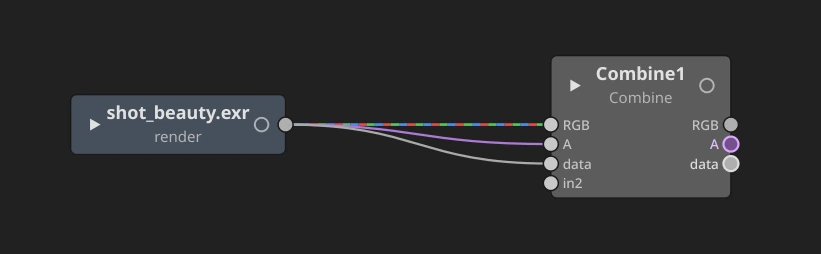
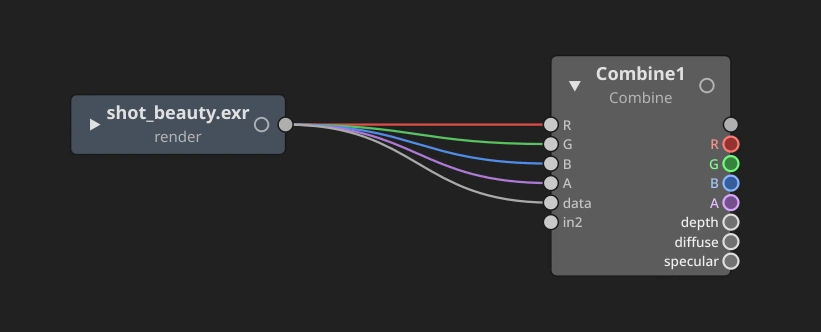
- Collapsed, its inputs are RGB, A, data and one free in. The image on the first in is its main image, drawn as a wire into each of RGB, A and data. Its outputs are RGB (the whole image), A and data (click it to take out one channel or layer).
- Expanded with ▸, it shows R, G, B, A one by one:
- R, G, B, A: one channel each.
- in: a whole image, a layer or a channel. When it fills, in2, in3... appear. Their channels keep their own names, so
depth.Zstaysdepth.Z. - A connected in2, in3... is labelled after what it brings: the layer or channel picked on the wire, or the one layer a whole image adds to the inputs above it (depth). If it adds several, the first and how many more (Depth +2). If it adds none, it keeps its name.
- A second image dropped on data goes to the free in. The main image stays connected.
- Replacing one layer: when the main image's node is expanded too, the Combine's data input shows one row per layer. A wire dropped on a layer's row (Depth, say) replaces that layer only:
- A layer or channel wire (another render's Depth socket) gives that row that layer or channel.
- A whole image gives it its layer of the same name; if it has none, its R, G, B, A.
- The wire ends on the row you dropped it on, and no new row appears. Behind it, the source takes the next free in (hidden) and a route such as
ViewLayer.Depth=in2:ViewLayer.Depthis added to Routes. That in then brings only that layer. - Drag the wire off the row, or drop the main image back on it, to get the main image's layer back. Each drop is one undo step.
- Dropping on R, G, B or A replaces that channel only.
- The later input wins: when two inputs bring the same layer, the lower one's is used. A second depth replaces the main image's depth. The main image's R, G, B, A stay; a second whole image only fills the ones it lacks.
- Expanded, each input sits on the same row as its output (in vertical flow, the same column): R with R, each layer with its layer.
- Feeding a Combine: an expanded node shows every one of its layers (Depth, Mist, Normal...) as its own socket, wired layer to layer into the Combine.
- Filling an empty channel: click an unconnected R, G, B or A socket to cycle none → white → black → none. "none" means the channel doesn't exist, e.g. no alpha. Drag a channel the main image feeds off its socket to unplug it, then click to fill it.
- pass through (on by default): every layer of an in image comes through. Off: only its R, G, B, A, and data is greyed.
- Dropping a whole-image wire on the node body connects it to the next free in, not to R, G, B or A.
- Scripts and the AI assistant can use the
routessetting:output=sourcepairs separated by;. - Example:
G=in2:depth.Z; A=white; B=none. - A source can be
op(a, b)with a ChannelMerge operation, e.g.A=union(A, in2:A). - A new output name makes a new channel.
- A layer from an in input:
ViewLayer.Depth=in2:ViewLayer.Depth, orViewLayer.Diffuse=in3for that input's R, G, B. That input then gives nothing else.
Wire first, pick the node after
Drag a wire from a free output or a free input and drop it on empty space. The node picker opens; the node you choose is created there, already connected.
Dragging an already connected input into empty space disconnects it instead.
Click to connect
You don't have to drag a wire. Click an output socket (a channel socket, or a pick from data, works too), then click an input socket on another node: they are connected, in one undo step.
Between the two clicks you can pan and zoom, so this is the easy way to connect nodes far apart in a big graph. The node you clicked stays highlighted until you click the input. Clicking anything else cancels.
The view follows your drag
While you drag a wire, a node or a selection box, bring the mouse to the edge of the graph: the view scrolls that way, faster the further you go, and keeps scrolling while the mouse rests there. Drop the wire on a node that was out of sight. The same works in the material editor's graph.
Grabbing small nodes
Zoomed out, a press on a node's body moves the node, even right next to a socket. Only the socket dot itself picks up the wire. Just outside the node, wires stay easy to grab.
Move or swap an input
Drag a connection from one input of a node onto another input of the same node:
- if the target input is free, the connection moves there;
- if it is connected, the two connections swap.
Each is one undo step. Shift+X still swaps a node's first two inputs.
Pick up a wire by either end
You don't have to aim for the socket: press on a wire near either of its ends (within about 35 pixels, measured along the wire) and drag it:
- The input end: drop it on empty space to disconnect, or on another input to connect there instead.
- The output end: drop it on another node's output to feed the input from that node instead, or on empty space to disconnect.
Where several wires meet one socket, or leave one output, the wire nearest the mouse is the one you take. A press in the middle of a wire still just selects it, and a click near an end without dragging selects it too. Each drag is one undo step.
A Scene's objects socket
A Scene has one objects socket, a little taller than the others, that takes every object you connect: cards, primitives, cameras, lights, ReadUSDs, other Scenes (groups). However many you add, it stays one socket of the same size: their wires end spread along it, in order from top to bottom (left to right in vertical flow), with a free place at the end, so they fan in apart.
- Connect: drop a wire anywhere on the socket (or on the node): it goes after the last one. Nothing already connected is replaced.
- Order: the wires' order is the scene's order, the one the Outliner lists and the render composes. It is the order you connected them in.
- Reorder: pick a wire up by its end (on the socket, or by the wire just before it) and drop it back on the socket at another place, higher or lower along it: it moves there and the others shift over, in one undo step. Dropped on the free place at the end, it goes last. With many objects the places are close together: zoom in to drop precisely.
- The objects list: the Scene's settings (in Properties and inside the node) list its objects in order, one row each, about six rows then a scroll bar. Drag a row up or down to reorder, click × on a row to disconnect that object, click a row to select its node. Each change is one undo step. With many objects this is the easiest way to reorder.
- Remove: drag a wire's end off the node, or delete the object: the later ones move up, so no gap is left.
Projects saved with the older numbered sockets (obj, obj2, obj3...) open with their objects in the same order, and Nuke scripts' Scene, MergeGeo and Axis inputs come in on this socket in Nuke's order. Scripts and assistants connect to it by the name objects (connect with an optional index in MCP, Node.add_input and Node.move_input in Python).
Tidy with L
L lays out the selected nodes (two or more), or the whole graph when fewer are selected, as a tree with nothing overlapping. One undo step.
- Few crossings: the nodes of each row are ordered by the sockets they feed, so wires don't cross. A node feeding a Scene's first object input sits left of one feeding a later input; a Merge's B comes before its A; a mask comes last.
- Straight wires: a source, or a side branch (a mask, a material, a Merge's A), is placed so its output lines up with the socket it feeds.
- Room kept: for thumbnails, and Backdrops are rewrapped around the nodes they held.
- Wires: a short wire going far sideways is drawn as a smooth S instead of a sharp bend.
Find a node
The Find node field on the graph's toolbar, before the flow button, finds nodes by name as you type. Ctrl+F in the graph (or Edit > Find nodes) puts the cursor in it.
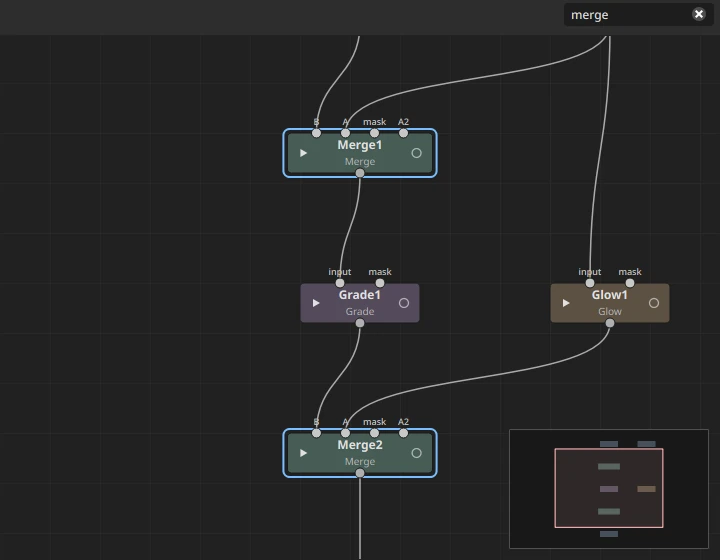
- The nodes whose name or type contains the text get a blue ring, and the view frames them all: typing
mergeshows every Merge, including a Merge you renamed. - The more precise the text, the tighter the view. When the text is a node's whole name, only that node is framed:
merge7shows Merge7, not Merge70. - A single node is framed at 100% at most, never blown up.
- The search doesn't change the selection. Enter selects the nodes found and gives the keys back to the graph; Esc clears the search.
- Nothing found anywhere: the field gets a red edge and the view stays where it is.
- It searches the level shown (inside a Nest, that Nest's nodes) and also the inside of every Nest there, Nests in Nests included. A Nest holding matches gets a dashed blue ring and a badge with how many it holds.
- When nothing matches at this level but something does inside Nests, the field says where, dimmed on its right:
2 inside Nest1, or5 inside 2 Nests, and the view frames those Nests. - Enter then goes into the Nest holding the first matches (straight into the Nest that holds them, however deep), selects them and frames them, as a double-click on the Nest would take you in. If other Nests hold matches too, the text stays and the field shows
Enter: next (1/3): each Enter goes to the next Nest, and the last one closes the search. When there are matches at the level shown, Enter selects those and stays where you are. - Esc clears the rings and badges everywhere.
Broken branches in red
The red-branch button on the graph's toolbar, between the Find node field and the flow button, shows the parts of the tree that can't render properly. It is on by default, and your choice is remembered.
- A node that can't render gets a solid red frame: a file it reads is missing, or its type is unknown.
- Everything after it, down to the Writes, gets a red tint, and the wires carrying the problem turn red.
- Hover a red node to see why: the missing file ("file not found: ...", "no frames 1001-1100 found: ..."), the unknown type, or "after Plate, which can't render" on the nodes downstream.
What counts as missing:
- Any file a node reads: Read, DeepRead, ReadUSD, ReadSplat, ReadVDB, a Precomp's script, LUT and OCIO files, textures, an AudioRead's sound, a Text node's font (a font name is also looked for in the font folders). Paths are checked as the node opens them: relative to the project's folder, with your path mappings and file expressions applied. A Write's file is never missing (rendering makes it).
- A sequence (
####or%04d) counts as missing only when none of its frames are there (a Read: none in its first-last range). A few missing frames don't turn the branch red; the Read itself still turns red with its own warning. - Unknown types: a node from a Nuke script that JOS doesn't have (kept as a NoOp with its knobs), or an OpenFX plugin that isn't installed here. A gizmo the script uses that isn't in your gizmo folders says "gizmo "StudioGlow" not found"; everything it feeds, down to the Viewers and Writes, is red with "after StudioGlow1, which can't render". Add the gizmo's folder (the import report's Import gizmos...) and the branch renders.
- A Nest or Precomp whose result comes from a broken node inside. Inside a Nest, the nodes reached by a broken branch from outside are red too.
- A disabled node passes its input through, so it isn't broken itself, and stops a branch reaching it on any input other than its first.
- An unconnected input doesn't count: the node still renders.
Files are checked again a few seconds after the last check whenever the graph changes, at once when you open a project, and when you reload a Read (R).
Copy and paste
Ctrl+C, Ctrl+X and Ctrl+V copy, cut and paste the selected nodes. A pasted node is the node you copied: its values, animation curves, expressions, thumbnail on or off, disabled state, a Nest's inside, and the connections between the copied nodes. Connections to nodes you didn't copy are left out. Names that are taken get the next number (Grade1 becomes Grade2); in another project, the names stay. The copies land at the mouse, and pasting is one undo step.
Vertical or horizontal flow
The Vertical flow / Horizontal flow button on the graph's toolbar turns the whole tree. In vertical flow, sockets are on the top and bottom of nodes; in horizontal flow, on the sides. Your choice is remembered.
Snap on sockets
With Snap on (graph toolbar), nodes snap to a 50-unit grid by their sockets, not their corners. An open node grows equally on both sides of its sockets, so nodes on the grid stay lined up whether they are open or closed. Every way of creating a node, and resizing a Backdrop, snaps too.
Node colours
Nodes are coloured by category in dark, muted tones, like the Backdrops, so the graph stays calm and the text stays readable.
Shake to extract
While dragging a node, shake it quickly: it leaves its wires, and the nodes around it reconnect. Drop a free node on a wire to insert it again.
Nests
A Nest holds a group of nodes and shows them as one node (Nuke's Group). Ctrl+G puts the selected nodes in a new Nest. Double-click a Nest to go inside; double-click the background inside to come back out (or Edit > Leave Nest).
Outside, a Nest called Look sits between a Read and the Viewer:

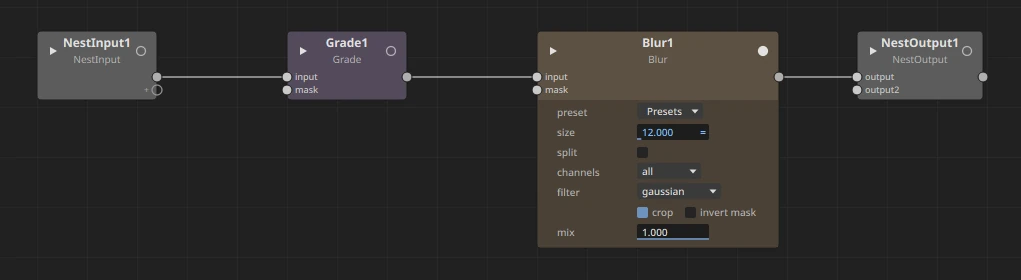
Inside, the Nest Input's sockets are the Nest's inputs, and the Nest Output's are its outputs. Each always ends with an empty socket (the Nest Input's is marked +): drag a wire from or to it to add one.
A Nest's sockets carry whatever its inside takes and gives: flat images, deep images (orange sockets and wires), and cameras, scenes and axes (yellow). A Nest made of deep nodes takes and gives deep images. A Nest whose inside ends in a Scene or a camera plugs into a render's scene or camera input, and an Axis plugged into a Nest's input moves what the inside parents to that input. The usual rules still apply: a 2D node won't take a deep image.
Showing a setting on the Nest: inside, Ctrl+drag a setting onto the Nest Input node. The Nest gets the same setting, with its value, and the inner one follows it by an expression (parent.size); its animation moves to the Nest. Numbers, on/off settings and colours can be exposed. Here the Blur's size and the Grade's gain were exposed, and size set to 12 on the Nest:
