
Start
The interface
JOS Compositor opens on one window made of panels. You can move, tab, float and close every panel except the viewer, and Space makes any panel fill the window.
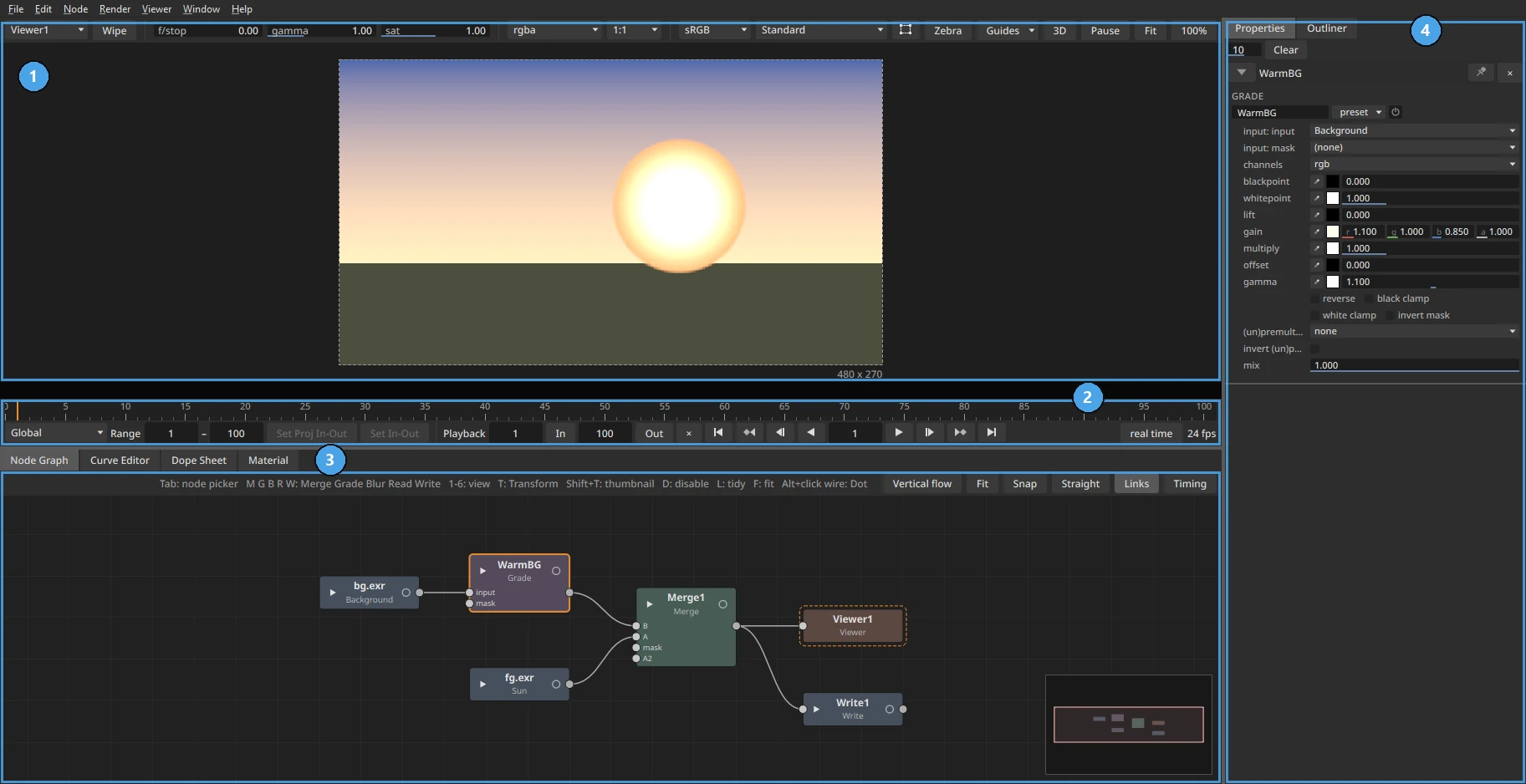
- Viewer. It shows the picture of the active Viewer node, with its toolbar along the top: the Viewer to show, wipe, exposure, gamma and saturation, channels, zoom, display transform, guides, 3D and pause. It stays at the centre of the window and does not float.
- Timeline. It holds the frame ruler, the playback range, the play buttons, real-time playback and the frame rate. Sounds draw their waves here, and M adds a marker.
- Node Graph, Curve Editor, Dope Sheet and Material share the bottom area as tabs. Script Editor joins them when you open it from the Window menu. The node graph's toolbar has the Find node field (Ctrl+F), then the broken-branches toggle (what can't render, in red: see The node graph), then the flow, Fit, Snap, Straight, Links and Timing buttons.
- Properties and Outliner share the right side as tabs. Properties shows the settings of the selected nodes; the Outliner lists the 3D scene.
Without the Properties panel you still have every setting: click the circle after a node's name in the graph and its settings open inside the node, with the same layout.
Moving panels
- Move a panel: drag its tab, or its title bar when it is on its own, to another side of the window. While you drag, the window shows where the panel will land.
- Tab panels together: drop a panel onto another panel. Panels in one group show their names only on the tabs.
- Float a panel: drop it outside the window, or double-click its title bar. A floating panel is a window of its own; you can put it on another screen.
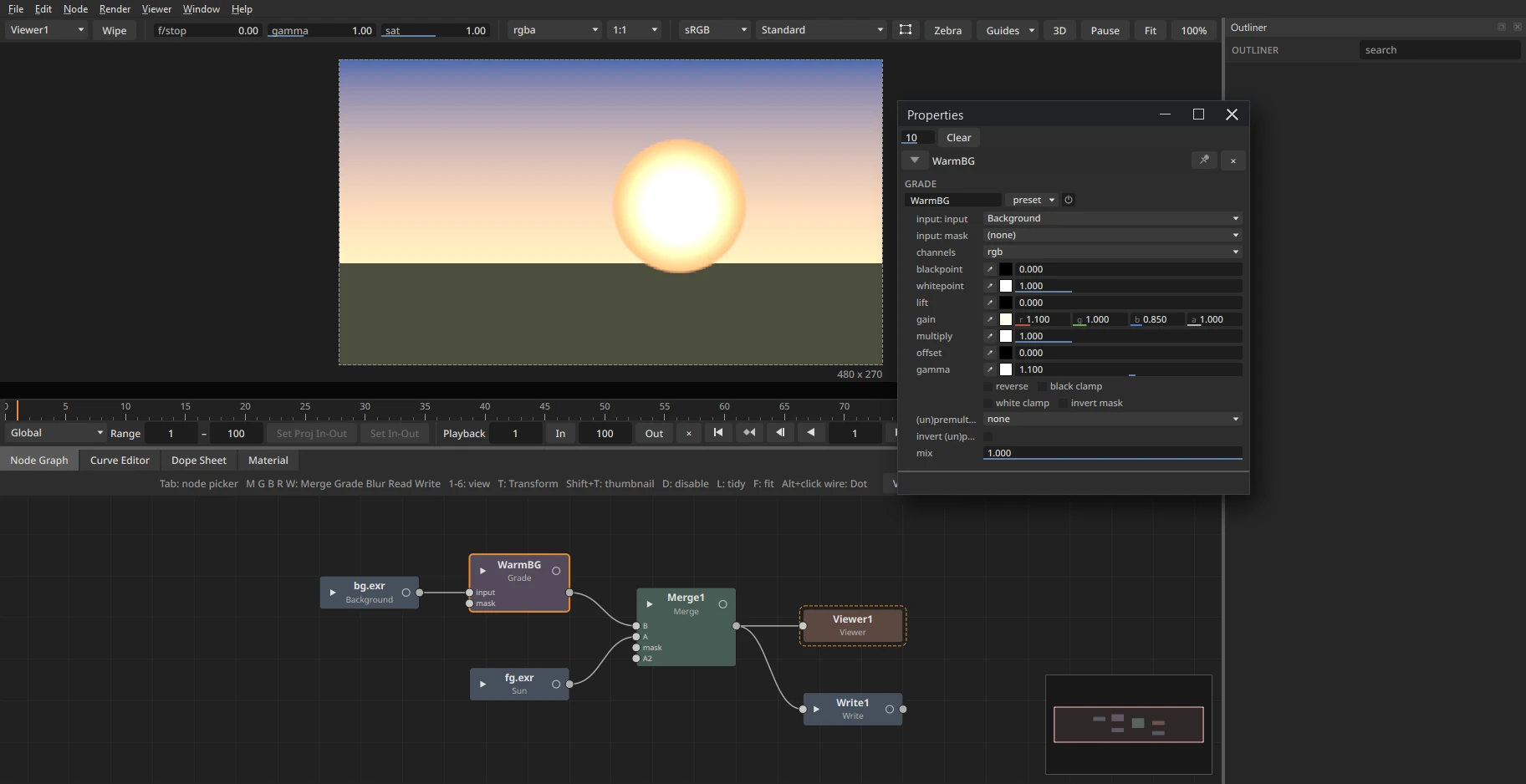
- Dock it back: double-click the floating panel's title. It goes back into the tab group it came from, not just beside it. Window > Dock floating panels docks every floating panel at once.
- Close a panel with the × on its title bar. Window lists every panel; pick one to bring it back.
Workspaces
A workspace is a saved layout of panels.
- Window > Workspaces > Save workspace as... saves the current layout under a name.
- Pick a name in Window > Workspaces to return to that layout. Default puts back the layout JOS comes with.
- Delete workspace removes a saved one.
When you quit, JOS remembers the layout you had and opens with it next time.
Space: play, or fill the window
What Space does depends on where the mouse is:
- Over the timeline, Space plays or stops, as in an editing app.
- Over any other panel, Space makes that panel fill the window. Press Space again, anywhere, to bring the layout back.
That makes a big node graph, a big viewer or a big curve editor one key away, without changing your layout. Here is the node graph after Space:
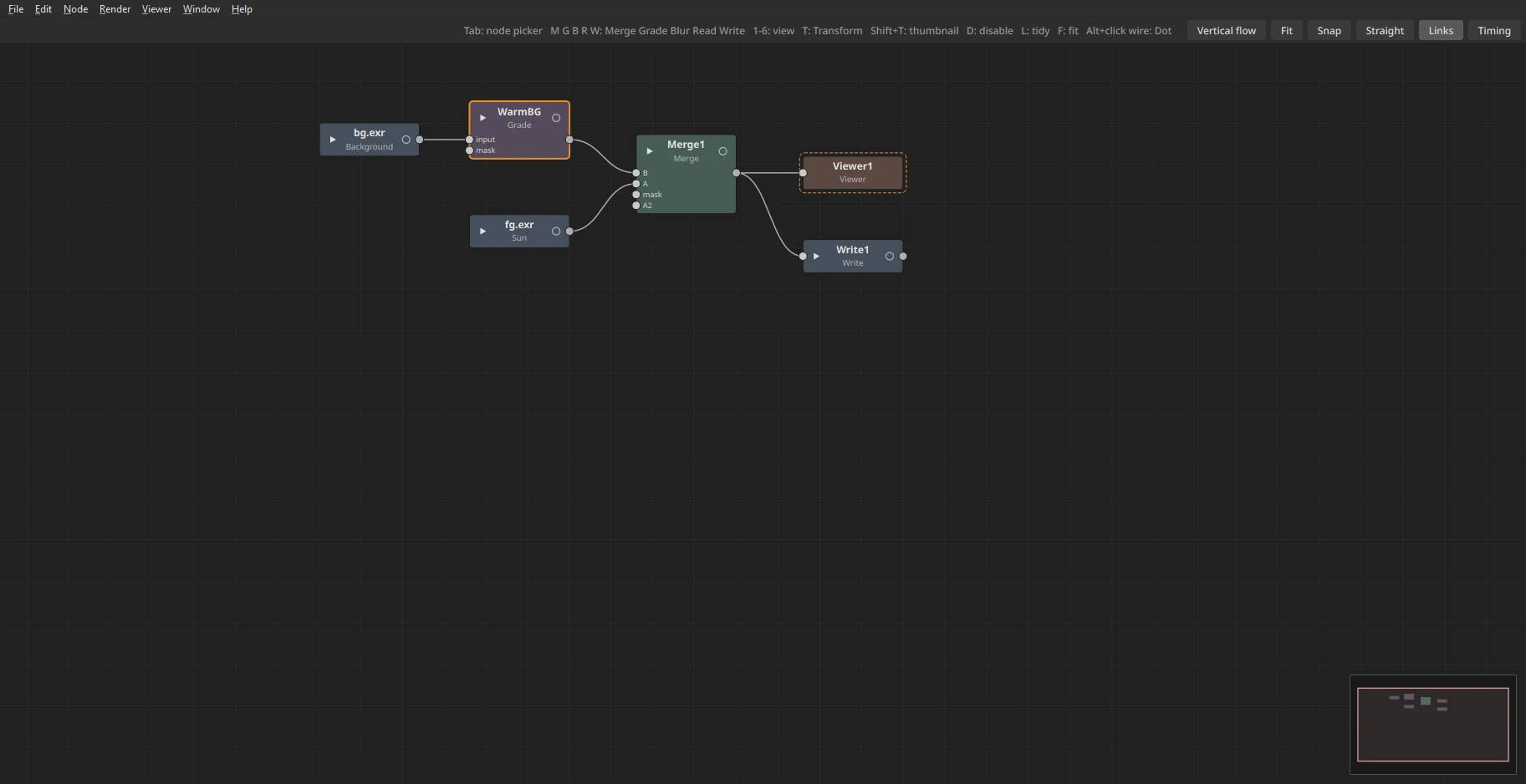
The other panels are hidden, not closed: each one keeps its zoom and position.
Shift+X does three things
Shift+X means "swap", and what it swaps depends on where you are.
In the node graph, with two nodes selected, the two nodes swap their connections. Each node stays where it is; only the wires change. Here the Grade was on the plate and the Blur on the foreground; after Shift+X the Grade is on the foreground and the Blur on the plate:
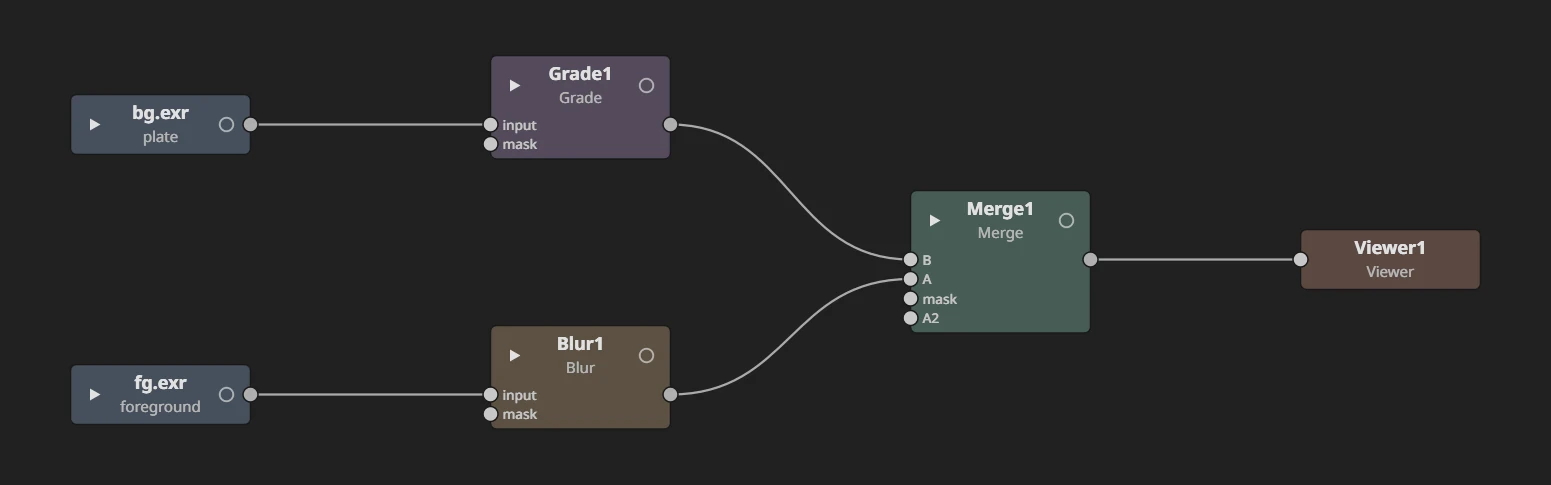

In the node graph, with one node selected, Shift+X swaps its first two inputs: a Merge's A and B trade places.
In roto and paint, Shift+X swaps the black and white swatches (see Roto and paint).
In the 3D viewport with Blender keys, while you move, rotate or scale (G, R or S), Shift+X keeps the change off the X axis: it constrains to Y and Z. Shift+Y and Shift+Z work the same way for their axes.
All the keys are listed in Keyboard shortcuts.