
3D
Materials: OpenPBR and the MaterialX editor
The Material node
A Material node is one OpenPBR surface. Plug its output into the mat input of a Card or a primitive (Cube, Sphere, Cylinder, Cone, Torus); one Material can dress many objects. Its knobs carry OpenPBR's own names and defaults:
- base colour, weight and metalness;
- specular roughness and IOR;
- transmission;
- subsurface;
- coat;
- emission (in nits): it lights the scene;
- opacity.
Textures: base_color_file puts an image file on the mesh's UVs. Or wire a comp image into the Material's img input: it is the base colour's texture when no file is set. Connecting one adds another (img2, img3...), which MaterialX image nodes in its graph can read.
Putting it on objects: - wire it into an object's mat input (drop its wire on empty space to pick a new Card or primitive to put it on); - or pick it in the object's Material section (New makes one for it, Edit opens the editor on it); - or drag its row in the Outliner onto an object or a file's prim; - or select prims in the Outliner or the 3D view and press Assign to selection in the Material panel.
The Material panel (MaterialX editor)
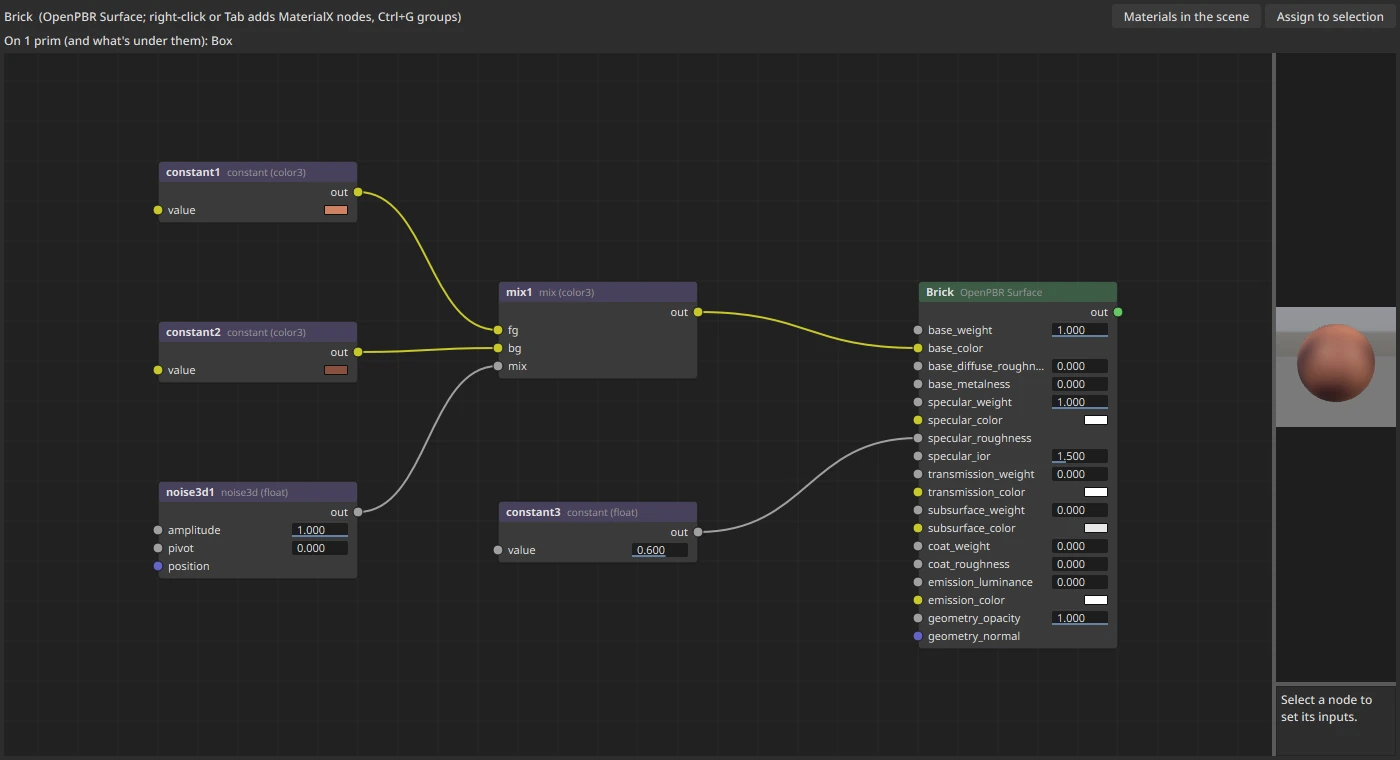
Window > Material opens a node editor for MaterialX graphs, as a tab beside the Dope Sheet. It follows the selected Material node; double-click a Material in the node editor to open it there.
- The OpenPBR node is the Material itself, titled with its name: its values are the node's knobs. On any node, drag a value left or right to change it (Shift for finer steps), click it to type, Ctrl+click to reset; click a colour box for the colour picker.
- Connections win: wire a pattern, texture or maths node into one of its inputs to drive that input; the knob is then ignored.
- Saved with the comp: each edit is one undo step, and the graph is saved in the project.
Gestures
- Adding nodes: right-click or Tab opens the add menu, grouped by kind.
- Wires:
- Drag from an output to an input to connect.
- Drag a wire off an input to move it or disconnect it.
- Nodes:
- Drag nodes to move them; Ctrl+click and box-drag select.
- Delete removes the selection. The OpenPBR node can't be removed.
- View: the wheel zooms, middle drag pans, F frames.
Inputs and animation
The panel beside the graph shows the selected node's inputs: sliders, colours, files and choices.
- Set a key: each input has a K button.
- Remove animation: right-click K for Delete key or No animation.
- In the dope sheet: animated inputs appear on the Material like its other settings.
Available nodes
54 MaterialX nodes:
| Group | Nodes |
|---|---|
| Surface | OpenPBR (Standard Surface and UsdPreviewSurface are read from files) |
| Texture | image, tiled image, UsdUVTexture |
| Constant | float, colour |
| Pattern | ramps, checkerboard, noise 2D and 3D, fractal, cell noise, Worley noise |
| Math | mix, multiply, add, subtract, power, invert, clamp, normal map, place2d |
| Adjust | smoothstep, remap, HSV adjust, luminance |
| Channels | convert, extract, combine, separate |
| Geometry | texture coordinates, position, normal, primvar readers |
Preview
Above the inputs, a preview renders the material with Storm and updates a moment after each change. Without OpenGL 4.5, it shows the base colour through Embree.
Materials already in the scene
Materials in the scene lists the materials of the ReadUSD's file, with the prims each is bound to.
- Show (read-only): displays the material's graph.
- Copy into (your Material) as OpenPBR: converts it into this Material. Standard Surface and UsdPreviewSurface are translated input by input. A list shows anything that has no OpenPBR equivalent.
- Back: returns to the Material's own graph.
Which renderers show what
- Storm draws the full MaterialX graph, with lights and textures.
- Embree evaluates base colours (textures and graphs) and lights them diffusely: no reflections or transmission.
- WriteUSD exports the materials as UsdShade networks for other renderers.
Not yet
- A dome light without an image gives Storm nothing to reflect, so metals look dark.
- Only one surface per Material.