
2D
Roto and paint
The Roto node does both shapes and paint. Open it (double-click) to get the toolbar in the viewer:
- Select
- Bezier: also holds ellipse, rectangle and open spline
- Brush
- Eraser
- Clone: also holds reveal and remove
- Blur: also holds sharpen and smear
- Dodge: also holds burn
A small triangle marks the buttons that hold more than one tool: hold or right-click the button to pick one. S picks Bezier (spline) and P paint; pressing S again cycles the Bezier button's tools (bezier, ellipse, rectangle, open spline), as V does in Nuke. This page covers what is particular to JOS.
If Q hid the viewer's overlays, creating a Roto brings them back, so its toolbar and shapes show at once; Q hides them again. The same goes for the other nodes you draw in the viewer: SplineWarp, Vector Graphics, PlanarTracker, GridWarp, Tracker and CornerPinTracker. Pasting a node, undoing or opening a project leaves the overlays as they are.
Only the Roto paints. A SplineWarp's shapes, a PlanarTracker's area and the trackers' occlusion shapes get Select and Bezier alone (Bezier still holds ellipse and rectangle; no open spline, since an area is closed): no brushes, no swatch, and the brush keys do nothing there.
Clone preview
Before you paint, the clone brush's circle shows what it will copy, already moved by the clone offset, so you can line it up (reveal shows its bg1 input the same way). It fades towards the edge as one dab of the brush would, with its hardness and opacity. Ctrl+drag from the source to where it goes sets the offset; a dashed circle marks the source.
Remove brush
The remove brush paints an object out. It fills the stroke with texture taken from around it, so there is no clone source to set.
- Pick remove under the Clone button, or in the brush type list of the settings row.
- Paint over the thing to remove.
Here a word painted on a brick wall is taken out with one stroke:
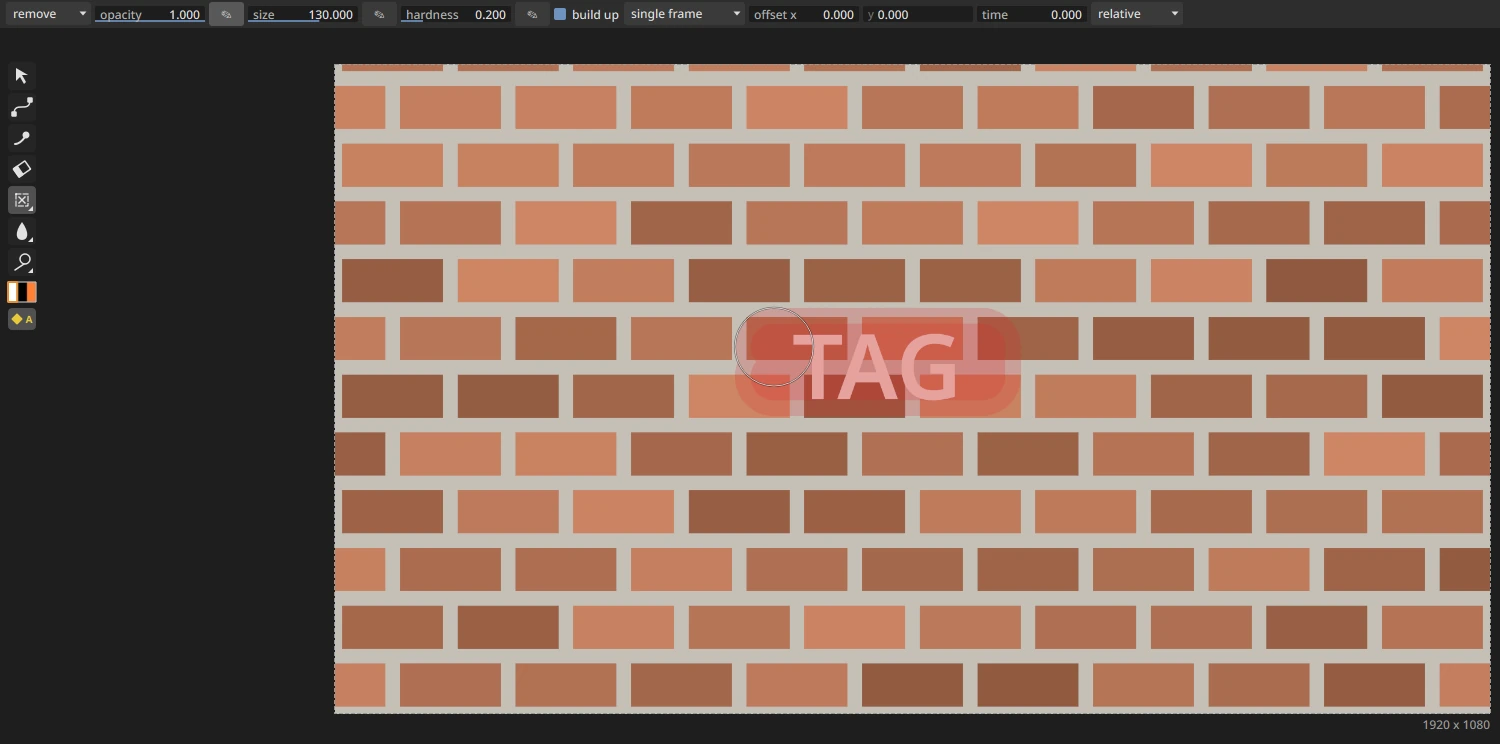
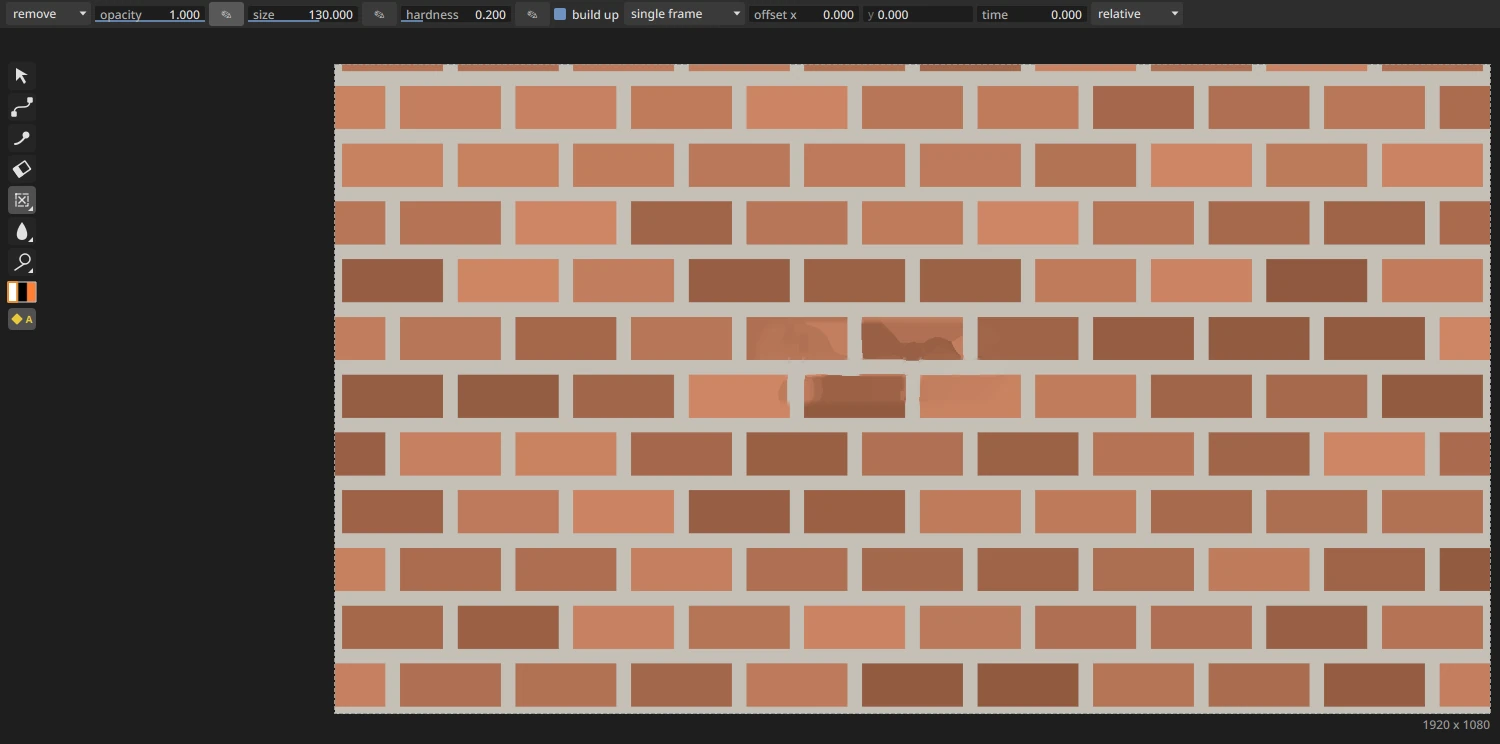
At render time the stroke's area is filled with patches from the surrounding picture, its grain is matched to the area around it, and the result is blended by the stroke's coverage. It only takes texture from where the input has pixels.
- Settings: size, hardness and opacity, like any brush. Ctrl+drag does nothing here, because there is no source.
- Speed: it runs on the CPU. A long stroke with a large brush takes about half a second to render.
- Inpaint node: the same fill is the Inpaint node's default method, texture.
Healing
The remove brush heals what it fills, like a healing brush in a photo editor. The fill keeps the grain it copied, but its colour comes from what surrounds the stroke, blended in from every side. A wall lit brighter on one side than the other stays seamless: the fill follows the light from left to right and from top to bottom, with no flat patch of one average colour.
Points animate on their own
Each roto point has its own animation: its position, its two tangents and its feather point.
- autokey (on by default, as in Nuke): the button with a key and an "A", under the toolbar's tools and swatches. While it is on, drawing a shape keys it at the current frame, and editing its points on a frame keys the whole shape there, so the timeline and the dope sheet show it. Right-click the button to give it a key.
- With autokey off, moving one point in the viewer keys that point only, and only if it is already animated; otherwise the change applies to every frame. The other points keep their own keys.
Inserting a point on an animated shape keys the new point at every key of the shape, so the outline doesn't jump.
Strokes and shapes in the dope sheet
Every paint stroke, and every shape that doesn't live on all frames, has a row under its Roto node in the dope sheet, with its lifetime drawn as a bar and its keys on it. An open end reaches the project's first or last frame and is drawn dashed.
- Drag the bar to slide the lifetime and every key of the stroke or shape together, by whole frames, in one undo step. Every selected bar moves together: click selects, Shift+click adds or removes.
- Drag an end to move only that end. An open end becomes a frame.
The Bezier tool
Drawing
- Click: a corner point. Click and drag: a smooth point; the drag pulls its handle.
- Ctrl: constrains the next point to 5° steps from the last one.
- Alignment guides: a magenta line appears when the point you place or drag lines up, horizontally or vertically, with another point. The guides list in the settings row picks "all shapes", "this shape" or "off" (off at first); G cycles through them.
- Typed offsets: while drawing, press X or Y, type a distance in pixels (- flips the sign, Backspace edits), then press Enter. A corner point is placed that far from the last point. Esc cancels the typing.
- Ctrl+Z or Backspace removes the last point. Esc cancels the shape.
- Right after you close a shape, Ctrl+Z opens it again with all its points, so you can go on drawing; the next Ctrl+Z removes its last point.
Closing a shape
- Click the first point, press Enter, or right-click: the shape closes, and the Select tool takes over to edit it. A click on the first point that moves a little still closes; drag it further to move the point.
- Alt+click the first point, or Alt+right-click: closes with a straight last segment.
- Shift+Alt+right-click: closes with a smooth join.
The new shape is selected in the list.
Holes
Ctrl+click right after closing a shape. The next shape you draw cuts a hole in it (its blending mode is set to minus).
Ellipse, rectangle and open spline
Hold or right-click the Bezier button to pick one; the button then shows its icon.
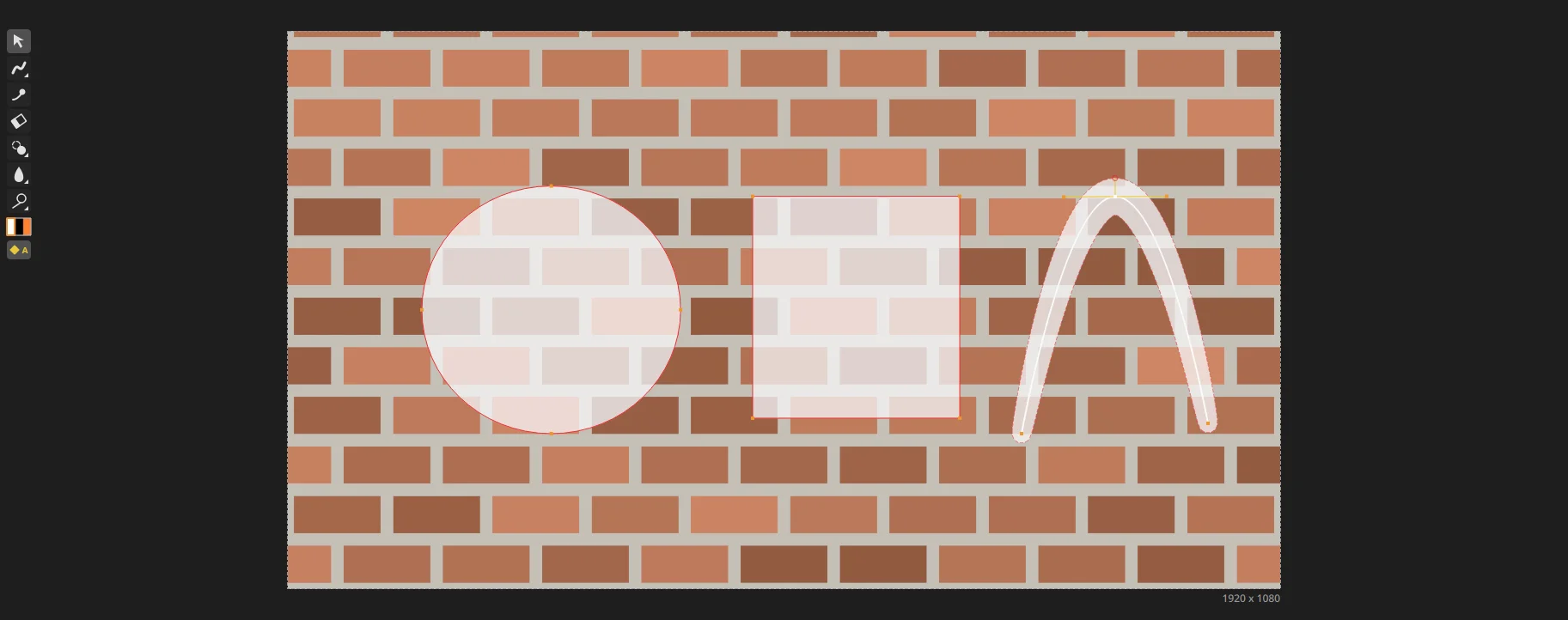
Ellipse and rectangle
- Drag a box in the viewer: the ellipse or rectangle fills it, corner to corner.
- Shift while dragging: a circle or a square.
- Ctrl while dragging: the box grows from where you pressed, its centre.
The result is an ordinary Bezier shape: an ellipse has four smooth points, a rectangle four corner points. You edit, key and animate it like a shape drawn with the Bezier tool, and it takes the paint colour and opacity, as other shapes do. Each shape is one undo step, and the Select tool takes over afterwards. A drag that starts on a point or a handle edits it instead.
Open spline
An open spline is a curve that is never closed or filled: it is drawn as a stroke along the curve, like a brush stroke you can edit point by point.
- Draw it like a Bezier: click for a corner point, click and drag for a smooth one.
- Enter or right-click ends it. Clicking its first point doesn't close it: it only grabs that point. Esc cancels it.
- The width in the settings row sets how far the stroke reaches each side of the curve (10 pixels by default).
- Each point has its own width too, a multiple of the spline's. Select a point: a small round handle shows on the stroke's edge. Drag it to widen or narrow the stroke at that point; the width changes smoothly to the next points.
- The stroke's edge is drawn dashed in the viewer.
In the shape's settings: width (the whole spline's), start and end (rounded, or square: cut off at the end point), and the feather, which softens the stroke beyond its edge, with the same falloff types as shapes. Point widths can be keyed and animated like the points themselves.
Open splines in Nuke scripts are imported with their widths and end types, and exported back as Nuke open splines.
Editing (Select tool)
- Drag a point or handle to move it. Ctrl+drag a point moves its feather point.
- Z: smooth. Shift+Z: cusp.
- Shift+drag a handle breaks it.
- Ctrl+Alt+Shift+click on the curve inserts a point. Alt+Shift+click or Delete removes one.
- Right-clicking a point gives the same commands.
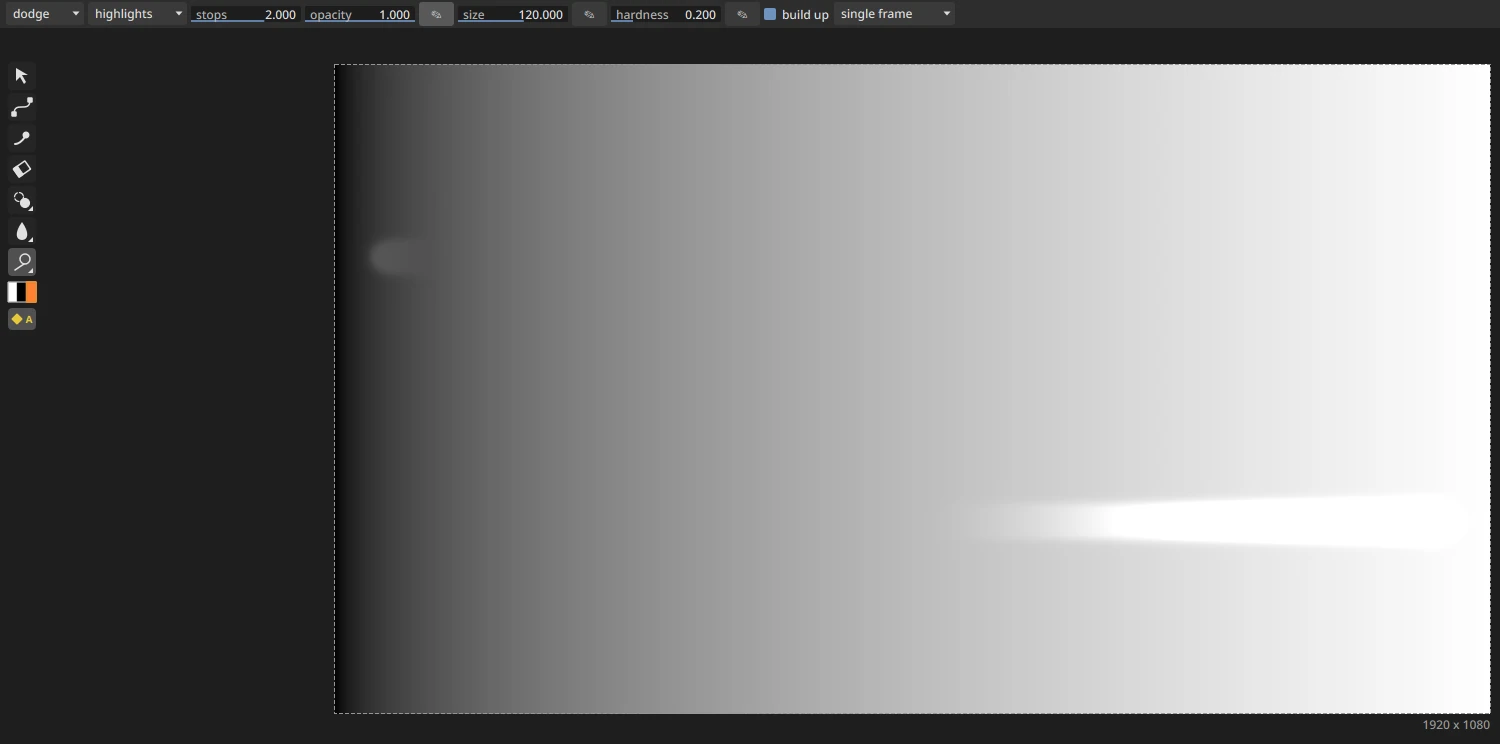
Dodge and burn by range
In dodge or burn, the settings row has a range list:
- all: classic colour dodge and burn.
- shadows, midtones or highlights: changes exposure by stops, weighted toward that range of tones, like a photo editor's dodge and burn.
The stops slider shows when the range is not "all".
Black and white swatches
Under the toolbar buttons is a striped swatch: white | black | RGB.
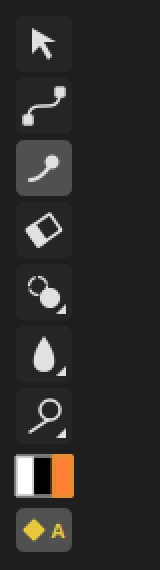
- Shift+X swaps black and white. From RGB, it goes to white.
- C picks the RGB colour. Click RGB again to open the colour picker.
These keys work while a paint tool is active.
Painting a matte (output alpha). A stroke writes its colour's alpha into alpha, as Nuke's RotoPaint does. The black swatch is black in alpha too (0 0 0 0): it cuts the matte, and leaves RGB untouched. On a node drawing alpha only, picking a colour for a stroke (the RGB swatch's picker: its greys and hues, wheel, R G B or H S V values, hex, eyedropper; a stroke's colour in its list or its settings) sets the alpha to the colour's grey, so the matte gets what you see: black paints 0, white 1, a grey its value (a colour counts as bright as it looks: its luminance). Setting A yourself in the picker (its A value, or a hex with alpha) keeps it. The RGB swatch shows that alpha, the value it paints. With output rgba the alpha stays as you set it, so black with alpha 1 paints black over the plate. A colour with alpha 1 set by hand paints white into alpha, and where a stroke goes past the image it leaves its RGB over alpha 1.
Straight lines
Alt+click marks a starting point. Each further Alt+click paints a straight stroke from the last point. Add Shift to keep the line to 5° steps. Esc forgets the mark.
Finding strokes
Above the node's list of shapes and strokes, the find field narrows it down: type a frame number to list the shapes and strokes that live on that frame (a stroke painted on frame 1042: type 1042), or part of a name. Clear the field to see them all again. With a paint tool active, Ctrl+A in the viewer selects every stroke in the list.
Master offset
Moves every stroke and shape of a Paint Roto node at once. With nothing selected in the node's list, the extra settings show an Offset tab:
- Master Offset X and Y move the whole drawing. Keyframe them, or link them to a tracker's track (Ctrl+drag the track onto them). The strokes' own points never change.
- Keep Transform uses only the movement since a reference frame, so linking to a tracker doesn't jump the drawing to the track's position. Turning it on sets the reference frame to the current frame.
- Tweak X and Y add small corrections on top.
The viewer draws the strokes where they render, and new strokes land under the mouse.
Clip to
The clip to setting says where the result is cut. A new Paint Roto starts on none: shapes and strokes outside the project format are kept, so a Paint Roto with no input can mask a plate bigger than the format. The other choices work as in Nuke: bbox keeps only the input's area, format cuts at the format, union keeps the input's area and the format, intersect the input's area within the format. Rectangle and Radial have the same setting, starting on format.
Nuke scripts keep their own setting (Nuke's default is format), and Paint Roto nodes from projects saved before this setting worked keep showing what they showed (none). Where a shape goes past its input's area, the input's edge pixels continue under it, as in Nuke.
Other brush gestures
- Ctrl while painting erases.
- Shift+drag changes the brush size. Ctrl+Shift+drag changes its softness.
- Pen pressure can drive opacity, size and hardness: use the ✎ switch next to each.
- The eraser brings back the picture under every brush, not only under paint.