
The app
Everyday conveniences
Start screen
When JOS starts with nothing to open, a start screen shows over the window:
- New starts a project (the New project dialog), Open... opens the file browser.
- Recent projects with their folder and when they were last changed. Click one to open it, or select it and press Enter. A project that has moved is greyed and marked "missing". Right-click a project for Remove from list.
- Esc, or a click outside the card, leaves you with an empty project.
- Untick Show at startup to stop it; it is also in Edit > Preferences > Projects.
The project follows your first footage
The first footage you bring into a project sets its frame range and format. Drop a plate on the node editor, import it with File > Import, or pick it in an empty Read's file browser: the project takes the plate's frame range (and a movie's frame rate) and its format (width, height and pixel aspect, with the format's name when it is a standard one). The status bar says so, for example "Project format set to 4096x2160 from Read1", and the project settings show "From Read1's footage" under the format. It is part of the same undo step as the Read, so Ctrl+Z takes both back.
- Only the first footage counts: once a Read in the project has a file, other Reads don't change the format.
- A format you chose stays. Picking a format or typing a size in the New project dialog or the project settings (S) turns this off for the project, and it is saved with it. A new project starts from the last one's settings, so it keeps a format you chose there too.
- Nuke scripts keep theirs: an imported
.nkscript opens with its own project format and frame range. - Nodes with nothing on their input use the project format, as in Nuke. A Ramp with no input reads it as it draws, so it covers the plate once the plate has come in. A Constant or Reformat takes the format when it is made, so make it after the plate (or pick the format in its settings).
A project with values JOS can't use
A project always opens. If it holds a value JOS can't use (a setting this version doesn't have, a choice it doesn't know, a connection to a node that isn't there, a node type it doesn't have), that value is left out, the rest opens, and a message lists everything left out. Saving then writes the project without them.
Names in any language
Node names, labels, notes and text fields can be written in any language and script, with spaces and punctuation: Éclairage clé, 背景 プレート, إضاءة 2. Right-to-left scripts are laid out correctly.
- In expressions: names made of letters and digits in any script work as they are (
Éclairage1.size). Put names with spaces or punctuation in quotes:"Key light".size. - An expression that stops working keeps the render going, as in Nuke. This happens when the node it reads is deleted, for example, or when an imported script reads a node it doesn't have. The setting then reads 0, and the node shows a warning naming the expression. A mistake typed into a field is still refused.
- Exporting to a Nuke script: characters Nuke doesn't accept become
_, and you are warned. - The interface itself is in English.
Properties: several nodes at once
Properties keeps the settings of the last nodes you selected, the newest on top (select one again and it comes back up). - The number at the top: how many it keeps (10 by default); past it, the oldest go. - Clear closes them all, except the pinned ones. - On each one's bar: fold (the triangle), pin (it stays through new selections, the number and Clear), and close. - Opening or closing settings in the node editor doesn't change Properties. S puts the project's settings on top.
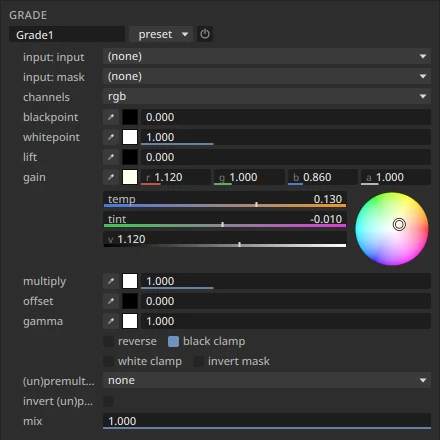
Colour wheels. Click a colour row's swatch to open its panel under the row: a hue and saturation wheel, and beside it temp (blue to orange), tint (green to magenta) and v (value), each with its colour gradient under the number. Temperature and tint keep the colour's average brightness. Open as many as you like; a drag is a single undo step. The full colour picker window is in the row's right-click menu (Colour picker...).
Hardware test
Edit > Preferences > Performance > Test this computer... takes a few seconds to measure:
- the CPU's threads;
- installed memory;
- a blur on the CPU and on the GPU;
- the disk cache drive's free space and write speed.
It then suggests settings, with the reason for each:
- RAM cache: half the memory, always leaving a quarter of it (6 to 32 GB) to the system.
- Disk cache: a fifth of the free space.
- GPU processing: on if it is clearly faster.
- Viewer tiles: 512.
Press Use these settings to fill them in.
Shortcut on any menu item
Right-click any item in the menu bar's menus to give it a keyboard shortcut. Press the keys, then OK. The node editor's right-click menu works too: right-clicking Blur there sets the Node menu's Blur.
- None clears the shortcut; Default restores the original.
- If the keys are used by another item, you are asked first; say yes and they move to this one.
Every key, panel by panel: Keyboard shortcuts.
Curve ends and noise
In the curve editor, right-click and use these menus:
- Before the first key / After the last key: Constant, Linear, Loop or Bounce, or:
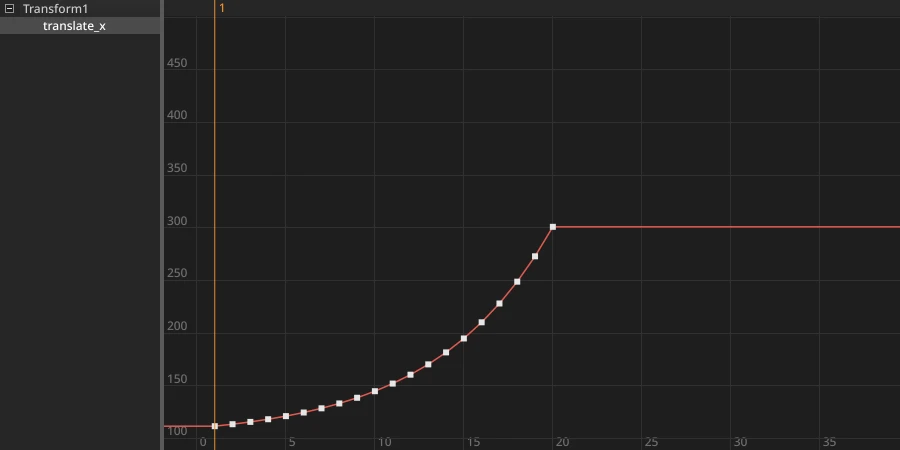
- Extrapolate: works out how the curve was going from its last keys (up to nine) and carries on: its speed and how it was speeding up or slowing down. Useful when a corner pin's tracker leaves the frame.
- Exponential...: keeps the speed changing by the same ratio each frame, for a move that was speeding up (or slowing down) exponentially. A strength slider pops up: 0 carries on at the end's speed, 1 as the curve was changing at its end, 2 twice as much. Choose it again to change the strength.
- Repeats...: how many times to loop or bounce. 0 means forever.
- Add noise: random variation on top of the curve. Its settings are strength, scale in frames, phase, offset and depth. Adjust them with Noise settings...; Remove noise takes it off.
No expressions needed. The curve and its keys stay editable.
A track speeding up until it leaves the frame at frame 20. Before: the curve holds after its last key. After: Extrapolate carries it on.

Fill gap
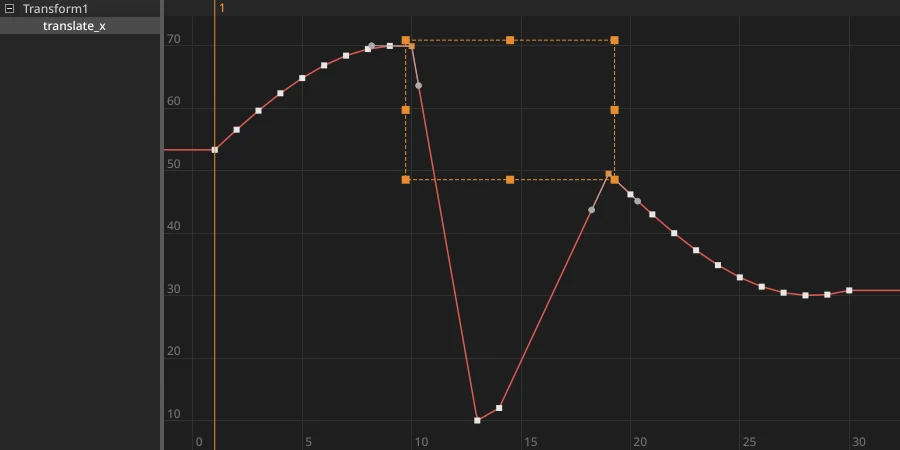
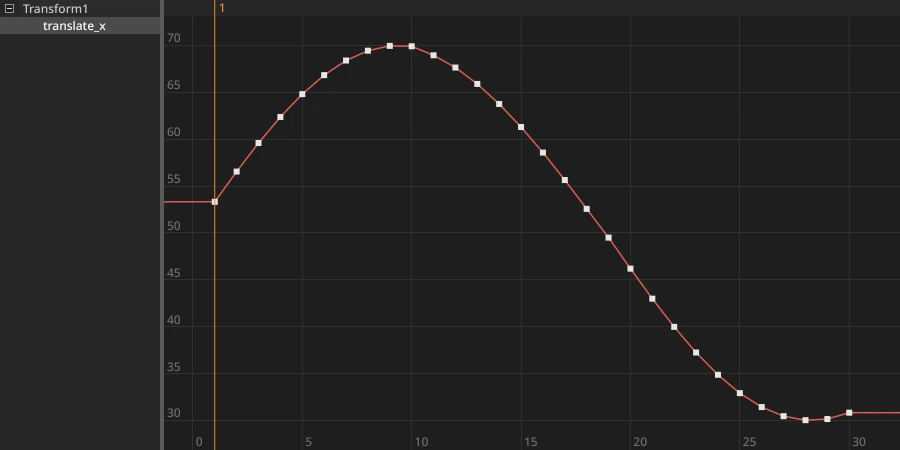
The trackers' fill gaps, for any curve. Select an in key and an out key, on one curve or on several at once, then right-click and choose Fill gap. On each curve, every frame between its in and out keys gets a key from a curve fitted to the keys on both sides (up to five each side), so a move on an arc keeps its arc. Keys that were between them are replaced. One undo step.
Curve editor extras
More
- Adding and shaping keys:
- Alt+click on a curve adds a key.
- Shift while dragging a tangent snaps it to 5° steps.
- Focusing and selecting:
- Clicking a curve dims the others.
- A selects all keys.
- Dope sheet:
- Alt+drag a Read's strip to move the keys of the nodes below it along with it.
- Paint strokes and roto shapes show their lifetimes as bars: see Roto and paint.
Timeline markers and sound scrubbing
- Markers: with the mouse over the timeline, press M to add a marker at the current frame.
- Drag its flag to move it.
- Right-click it to change its colour, write a note, or delete it. Hover to read the note.
- Markers are saved with the project and can be undone.
- Sound-only scrubbing: hold Ctrl while dragging the playhead to hear the sound without rendering pictures. The picture catches up when you let go. Use it to find a beat or a line of dialogue quickly.
Each sound (an AudioRead node, or a movie Read's sound) is drawn along the timeline as a wave in its node's colour, from the frame it starts at. A marker's flag carries the start of its note:

Wipe compare, zebra and matte overlay
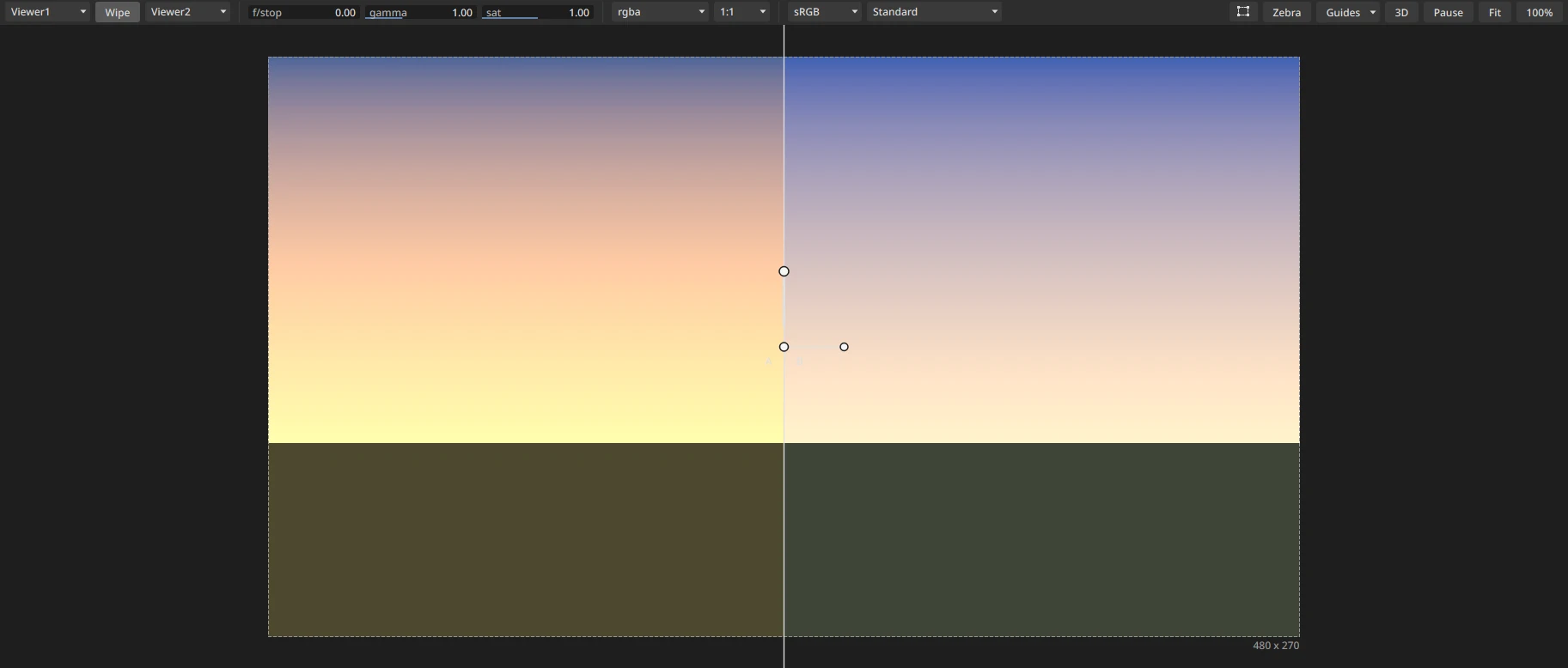
- Wipe: the Wipe button on the viewer's toolbar (or W over the viewer) compares the Viewer you are looking at (A) with another Viewer (B), chosen in the list that appears beside the button. B can be another Viewer or A itself.
The wipe line is labelled with the names of the two nodes being compared, as they are named in the node graph (a renamed node shows its new name), each on its own side: A's in green, B's in blue. Long names are shortened in the middle; a Viewer with nothing connected is labelled with its letter, A or B.
While the wipe is on, the node graph rings the same nodes in the same colours: a green ring round the node A shows, a blue ring round B's.
B can be the same Viewer as A (the last item of the list, "(same as A)"), so one picture can be compared with itself; one Viewer is then enough. Each side has its own display channel: with the mouse over a side, R, G, B, A or Y (luminance) shows that channel on that side only, and the same key again goes back to RGB. The side's label names its channel after the node's name, for example
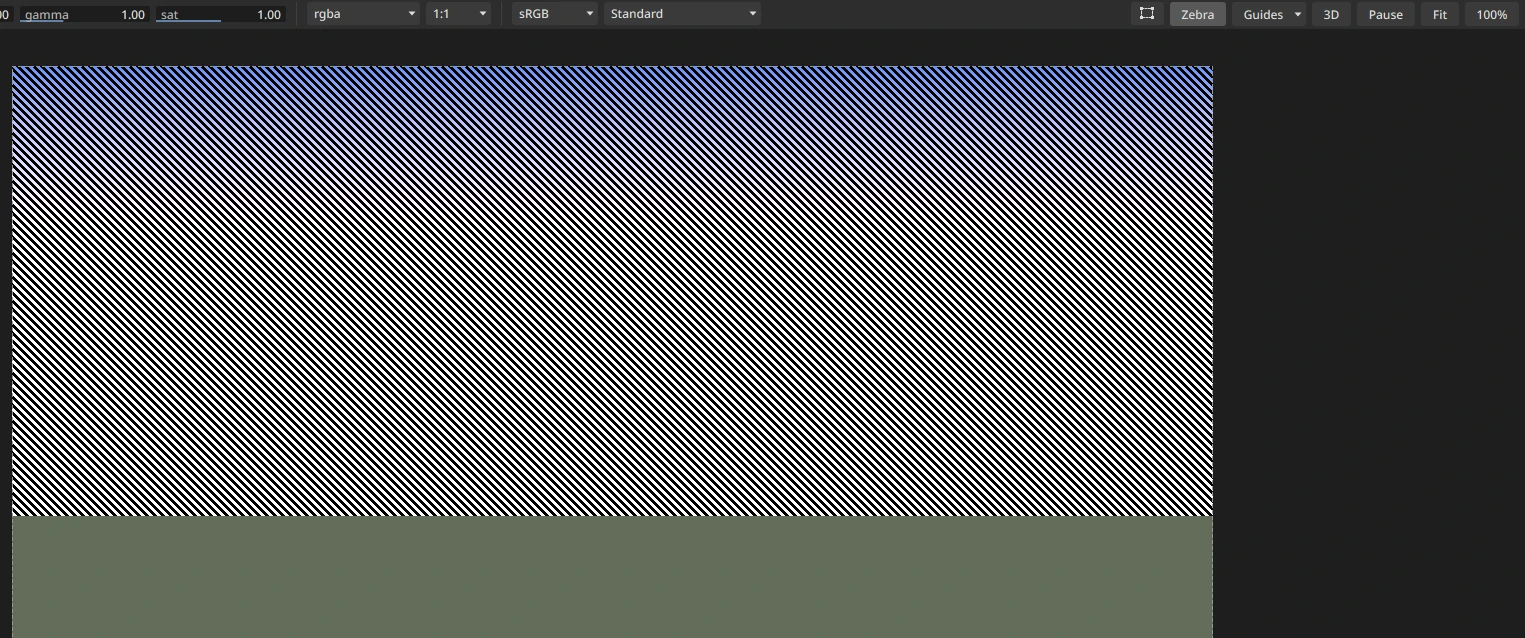
Read1 (A)for the alpha. Exposure, gamma and the view stay shared by both sides. Drag the centre handle or the line itself to move the wipe, the handle at the end of the short arm to turn it, and the thick handle along the line to fade B. These handles come before any node's tools in the viewer: with a Qualifier's picker, a roto tool or a tracker on, a drag on the wipe's line or handles moves the wipe, and a click anywhere else still goes to the node's tool. - Zebra: the Zebra button draws diagonal stripes over the pixels whose R, G or B is over 1. It reads the values themselves, before the viewer's exposure and display transform.
- Matte overlay: the Matte button, right of Zebra, lays a half-transparent red over the parts of the picture the alpha leaves out (1 - alpha), as Photoshop's Quick Mask does: where the alpha is 1 the picture shows as it is, where it is 0 it is half red. Use it to judge a key or a roto without switching to the alpha. It works on whatever node the viewer shows and only changes what is on screen, never the images or the cache. A picture without an alpha counts as alpha 1 inside its data window.
Placing an image in the viewer
One green box places an image wherever a node moves one: the Transform, TransformMasked and Text nodes, a Match Move's or Merge Tracks' image, a CornerPinTracker's source and a PlanarTracker's insert. It sits on the image's frame as the node leaves it.
- Drag inside the box to move the image (Shift: along one axis only).
- Drag a corner to scale it both ways, or the handle in the middle of a side to scale it one way only (scale x or scale y).
- Drag the round handle above the top edge to turn it (Shift: 15 degree steps).
- On a Transform or Text: Ctrl+drag the cross to move the pivot (center) without moving the image, and Ctrl+drag a side's handle to skew along that side (top or bottom: skew x; left or right: skew y).
- Each drag is one undo step. Q hides the box with the other overlays.
File browser
Every Open, Save and Import uses JOS's file browser:
- Icons view with picture thumbnails, plus List and Details views.
- Sequences: shows numbered files as one entry, e.g.
shot.####.exr (1-50, 54-100), unless you turn the sequences button off (it stays as you leave it). Sequences with missing frames are tinted. - Next, beside Open, where files are brought in (File > Import File, R in the node editor, a Read's file button): brings the selected file or sequence in at once and keeps the browser open on the same folder, so you can pick the next shot. Each Next is its own undo step, and the new nodes line up side by side. On a Read's file button, the first pick sets that Read and the next ones add Reads beside it. Open brings the selection in and closes the browser. Next isn't there when the browser picks one path for a setting (a Write's file, a folder in the preferences).
- Search, breadcrumbs and bookmarks.
- Drag files from the browser onto the graph.
Path Manager
File > Path Manager... lists every file the comp uses, found or missing.
- Replace a prefix to repath many files at once.
- Search a folder and its subfolders to find missing files.
Each action is one undo step. Windows-to-Linux path mappings are set separately, in Edit > Preferences > Projects > Path mappings.
Read-only without a licence
Without a valid licence, JOS still opens your comps, in read-only mode. The title bar says so.
- You can: look at a comp, view any node and inspect it.
- You can't:
- save;
- render Write nodes;
- export to Nuke;
- copy nodes to other applications;
- run Python, plugins or the AI assistant's file output;
- let the AI assistant read the whole graph.
Help > Licence... shows this computer's ID and loads a licence file (.joslic).
Opening Nuke scripts
File > Import File..., or dropping a Nuke script (.nk) or gizmo on the node editor, adds it to the comp; File > Open... opens a script as a new comp. The tree is rebuilt with JOS's nodes and the same settings.
When something doesn't come across exactly, a report says so. You can keep it open while you work:
- Will look different from Nuke, in red: the warnings that change the picture, such as a Nuke node JOS doesn't have yet or a lost connection.
- Gizmos not found, OpenFX plugins not installed and Not in JOS: nodes that need something your computer doesn't have (a gizmo's folder, a plugin), or Nuke nodes JOS leaves out on purpose (Primatte and Ultimatte, licensed to Nuke by other companies; machine learning; particles). They are kept as NoOps with their settings, and show in red in the node editor with everything after them (see The node graph). These aren't faults of JOS, so they are never sent as bugs.
- Adapted to JOS: Nuke nodes that became a JOS node by another name, e.g. a Shuffle that became a Combine.
- Other notes, dimmed: settings not used, values set once.
OpenFX plugins
JOS loads OpenFX plugins (Resolve's, Natron's, other studios'), but only the ones you choose:
- At each start JOS looks in the folders of the
OFX_PLUGIN_PATHvariable, in the standard folder (C:\Program Files\Common Files\OFX\Pluginson Windows), and in folders you add in Preferences > Plugins. - Preferences > Plugins lists every plugin bundle found, each with a tick box. A bundle stays off until you tick it. Changes apply when you click OK, with no restart: a bundle you tick loads at once and its effects join the Node menu, the right-click menu and the Tab menu; a bundle you untick leaves those menus at once. An unticked bundle stays loaded until JOS quits (unloading a plugin while it may be rendering isn't safe), so its nodes already in the project keep working until then; at the next start they open as placeholders, in red. The status bar says what changed. Hover a bundle to see which effects it gave, or why it failed to load.
- The first time JOS starts, if it finds plugins, a note says how many and where, and offers to open the Preferences.
- Loaded plugins appear under OpenFX in the Node menu and the node editor's right-click menu, in the submenus each plugin asks for (its "grouping", as in Natron): G'MIC's 360 effects under OpenFX > GMIC, in its 19 categories (Artistic, Black & White, Colors, Patterns...: 35 effects at most each), Natron's CImg and Misc effects under OpenFX > Filter, Color, Merge, Time, Transform..., and Resolve's under OpenFX > Blackmagic Design. A plugin that gives no grouping goes under its maker's name.
- Menus show each plugin's own name, not its identifier, and G'MIC's names lose the "GMIC" the menu already shows (OpenFX > GMIC > Black & White > Charcoal). When two plugins in one menu have the same name, the maker's name follows in brackets ("Blur (Gmic)").
- A menu of more than 40 effects is cut into ranges of first letters (A–F, G–M...). None of Natron's sets needs it today.
- In the Tab search, an effect shows with its menu path ("Charcoal (GMIC/Black & White)"). Type its name ("charcoal"), its name and set ("gmic charcoal"), or a submenu's name ("artistic") to list what is in it.
- New nodes are named after the effect: Charcoal1, Charcoal2... Projects keep the plugin's identifier, so renaming or regrouping in a plugin's update doesn't break them.
Colour spaces. Every OpenFX node has two settings of JOS's own under Colour: input colour space, the space the plugin works in (JOS converts its inputs from the working space to it before the plugin renders, and the result back), and output colour space, the space of the plugin's result when it differs (empty: the same as the input's). Empty input colour space: no conversion, the plugin gets the working space (scene-linear), as in Nuke. Many plugins are made for video (grades, looks, film emulations) and expect display-referred values such as Gamma 2.4 Encoded Rec.709: set it on them. These settings aren't written to Nuke scripts (Nuke has no such knobs).
A DaVinci Resolve grade (.drx). DaVinci Resolve installs an OpenFX plugin, DaVinci Resolve Renderer, in the standard folder. Tick it in Preferences > Plugins: its node applies a grade exported from Resolve (a still's .drx file, chosen in its settings; the file browser shows .drx files) to the image you connect. The quickest way: drag the .drx onto the node editor, or bring it in with File > Import File... (the file browser lists .drx files). It becomes a DaVinci Resolve Renderer node with the grade as its effectFilePath: where you dropped it (Import File: the middle of the node editor), or, with a node selected, right after it and connected to it, as Tab places a node. Several .drx files at once give one node each, side by side; each is one undo step. When the plugin is found but unticked in Preferences > Plugins, the drop ticks it and loads it at once (the status bar says so); when DaVinci Resolve isn't installed, a message says so and nothing is added. The plugin starts Resolve's engine in the background: for the first few seconds frames come through ungraded, then the grade shows. It needs DaVinci Resolve Studio installed on the computer.
- A grade is made for the values Resolve gave it. Its node's input colour space starts on Gamma 2.4 Encoded Rec.709, Resolve's default timeline (Rec.709 Gamma 2.4), so a grade made on ordinary video looks as it did in Resolve. Without it the plugin got scene-linear values and the grade looked far too contrasty and saturated.
- When your Resolve project isn't colour managed (DaVinci YRGB, Resolve's default), the grade worked on the clip's own values: set the input colour space to the clip's encoding, the same as its Read's colour space (an iPhone HDR clip: Rec.2100 HLG). When it is colour managed (DaVinci YRGB Color Managed, ACES), set it to the project's timeline colour space. The .drx doesn't record either, so JOS can't tell; Resolve shows them in Project Settings > Color Management.
- Read the same clip that was graded in Resolve: a converted copy (a ProRes made from an HDR original, say) has different values, and the grade won't match.
- An error such as "render failed: out of memory (kOfxStatErrMemory, status 8)" usually means the plugin couldn't read its file: check that effectFilePath is a .drx (not the still's .dpx).
Natron's plugins. Natron's free OpenFX plugins add about 500 effects: G'MIC (360), CImg (30), Shadertoy, and Natron's Misc set (108 of its 110 render; JOS has its own Premult and Unpremult). On Windows, Get Natron's plugins... in Preferences > Plugins downloads them, and the first start offers it once:
- They come from the Natron project, not Jungle of Sharks, under the GNU GPL. JOS downloads Natron 2.5.0's own release from Natron's GitHub (196 MB), checks it is that exact file, and keeps only these four plugin sets, with the runtime files each one needs, in JOS's own folder (
%APPDATA%\Jungle of Sharks\JOS Compositor\OFX\Natron). The download is deleted afterwards. - They come turned on and load at once; untick any of them in Preferences > Plugins.
- Natron's IO and Arena sets are left out: they conflict with libraries JOS uses itself.
Rendering
A Write's Render button (or Render > Execute selected Write..., F7) renders in the background: JOS stays usable while the frames are written. You can view, play, move around the node graph and keep editing.
- The render uses the comp as it was when it started. Changes you make while it runs go into the next render, not this one.
- The status bar shows the Write being rendered, frame n / total, the time left, and how many renders are waiting. Stop ends the render, even in the middle of a frame. The frames already written are kept, a movie is finished with the frames so far, and the waiting renders are dropped.
- Starting a render while another one runs puts it in a queue. Renders run one after another, each using every CPU core.
- When the queue is done, any errors appear together in one window that doesn't block the app.
- A Write's Python scripts (before render, before and after each frame, after render) and the pipeline plugins' render callbacks still run at the same points, in JOS's main thread.
- Closing JOS stops the render that is running.
jos-render, the AI assistants' execute a Write and Python's jos.render render the same frames, but they wait for the render to finish before returning.
Load render output
A Write's Load render output button makes a Read for every enabled output with a file, side by side under the Write, in one undo step. Each output's header also has its own load button, for that output alone. Each Read stays linked to its output: press the button again and it updates those Reads where they are, instead of adding more. Frames and colour space follow the output's settings; a movie output loads as a movie Read.
WebP output
A Write's file type can be webp (or a file name ending in .webp). quality sets the size against the look; lossless keeps every 8-bit value exactly (larger files). Alpha is kept. Nuke doesn't write WebP: a Write set to it exports to Nuke with a warning.
.braw camera files
JOS reads .braw camera files (JOS Compositor compatible with Blackmagic Design Blackmagic RAW): drop a .braw clip on the node graph (or choose it in a Read's file browser) and it reads like a movie, frames 1 to the clip's last, at the clip's frame rate, with its timecode and camera metadata. The project takes the clip's frame rate when it is the first Read. The Blackmagic RAW decoder comes with the installer (in its braw folder), so nothing else needs installing.
The Read shows a .braw section for these clips, with Nuke's settings:
- decode using: Camera Metadata decodes with the clip's own settings (the camera's, or those a
.sidecarfile next to the clip holds, as Blackmagic Design's own tools save them). Clip Custom uses the settings below it: colour science, colour space (gamut), gamma, ISO, exposure, white balance (As Shot, a preset, or Custom kelvin and tint), highlight recovery, gamut compression, the clip's 3D LUT, and the tone curve (saturation, contrast, midpoint, rolloffs, black and white levels) for the Blackmagic Film, Extended Video and Custom gammas. A Read pointed at a clip starts with the clip's own values in them. - Load settings from metadata sets them back to the clip's own. Update sidecar saves the settings the clip is decoded with to its
.sidecarfile, so Blackmagic Design's own tools show it the same way. - decode resolution: full, 1/2, 1/4 or 1/8 of the clip's size (the Read's format is that size). Proxy levels in the viewer decode at the smaller size directly, so a 6K clip plays fast at 1/4 or 1/8.
- use GPU if available: decodes on the graphics card (CUDA on NVIDIA cards, else OpenCL). Without one, or if it fails, the clip decodes on the CPU and the node says why in its warning. The two pictures differ by less than a thousandth on average (the GPU's demosaic is a little different at fine edges).
Colour. The clip is decoded in the colour space its gamut and gamma give, and the Read converts it to the working space from there: Blackmagic Design gamut with Blackmagic Design Film is BMDFilm WideGamut Gen5, with Linear Linear BMD WideGamut Gen5; DaVinci Wide Gamut with DaVinci Intermediate is DaVinci Intermediate WideGamut; ACES AP1 with Linear is ACEScg, with ACEScct ACEScct; Rec.2020 with the Rec.2100 gammas Rec.2100 HLG or PQ; Rec.709 with Linear the working space itself. Linear decodes are scene-linear and never clamped. Another combination (or Generation 4 colour science) reads the values as they are, and the node's warning says so: set the Read's colour space to say what they are. Setting the colour space yourself always overrides the automatic one.
Blackmagic RAW and Blackmagic Design are trademarks of Blackmagic Design Pty. Ltd.
Reporting a bug or an idea
Help > Report a Bug and Help > Make a Suggestion open a short form: a title, what happened (or the idea), and for bugs the steps and how bad it is. Send files it in JOS's public issue list for you, with your version, system and graphics card; no GitHub account is needed. An email, if you leave one, stays private. After a crash, JOS offers the same form with the crash log.
After a Nuke import, the import report has Send as bug (the report's text only) and Send as bug with Nuke file (recommended), which also sends the script. A missing gizmo isn't a bug: when the only problems are gizmos not found, OpenFX plugins not installed or nodes JOS leaves out, the buttons aren't there and the report says there is nothing to report. When there are real problems too, the buttons are there and the report sent lists only those. When the script used gizmos that JOS found and read from your gizmo folders (a gizmo used inside another gizmo too), the form has Include the gizmos this script uses, ticked; hover it to see which files and folders. The script and the gizmos are kept privately by Jungle of Sharks to reproduce the bug, never published (the public issue only says how many files came with it), so send only files you may share. Together they can be up to 8 MB compressed; when they're bigger, the script goes alone and the form says so.
Precomp from a Nuke script
A Precomp node can load a Nuke script (.nk) as well as a JOS project. The script is rebuilt with JOS's nodes and computed inside your comp.